

Register
Process Type
Graphical expression
Mind Type
Structured expression
Note Type
Efficient expression

Free Online Onion Model Drawing Tool

Try for free
Free Online Onion Model Drawing Tool
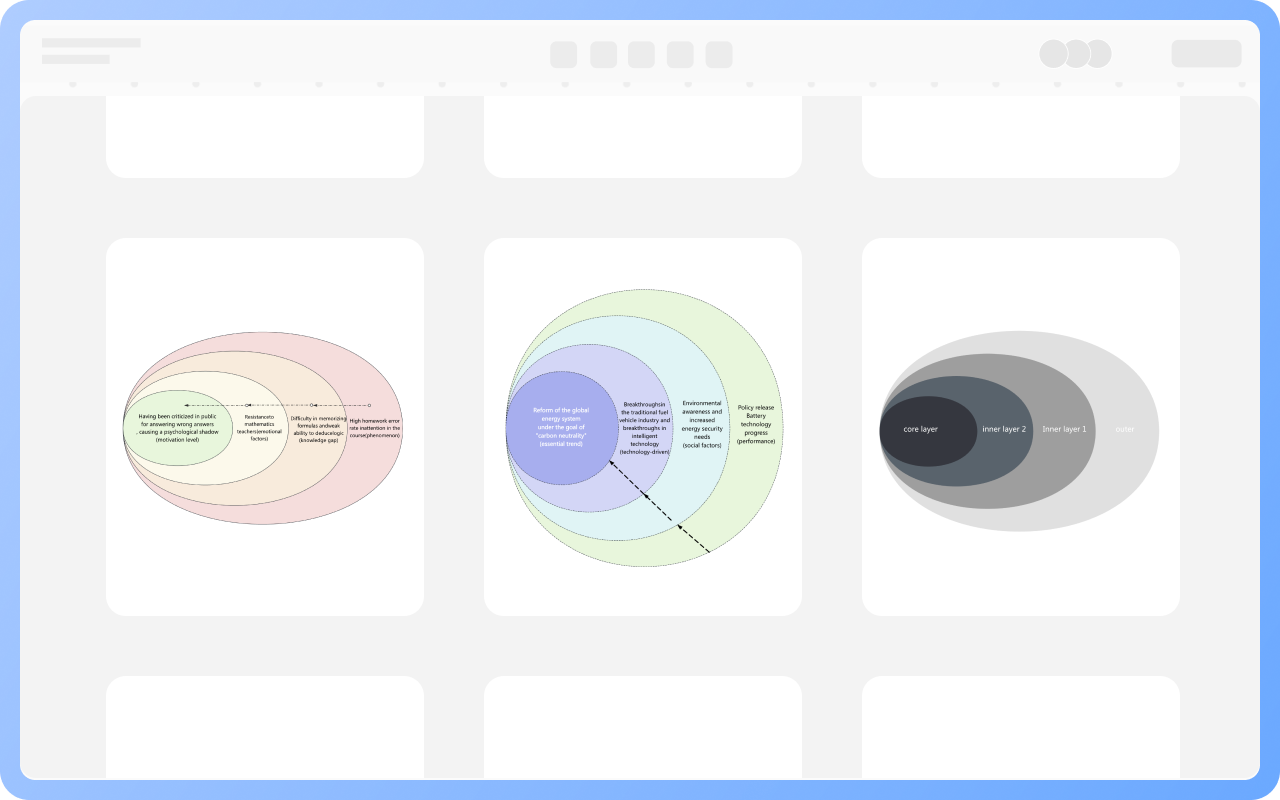
What is Onion Diagram
Try for free
Application of Onion Diagram
Try for free
Application
Components of Onion Diagram
Try for free
Components
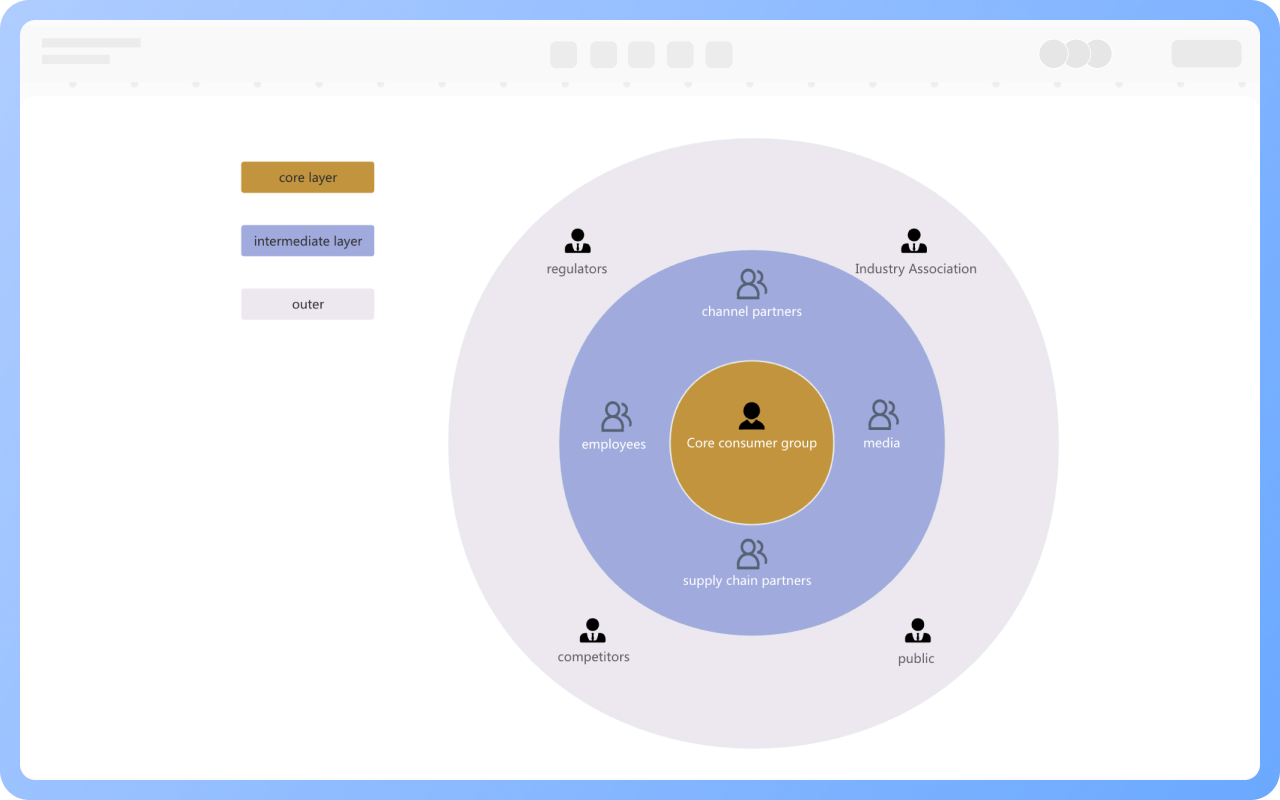
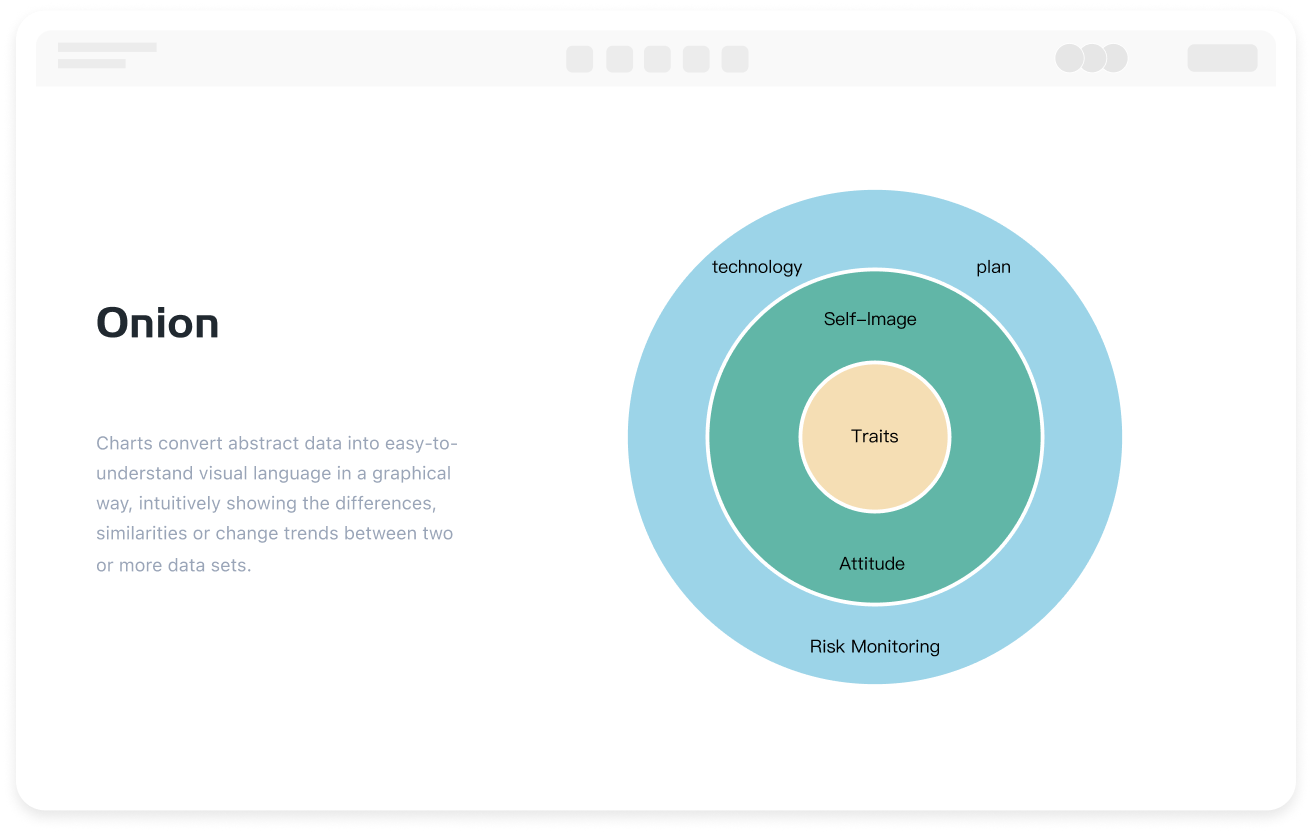
The Three Levels of the Onion Model
Try for free
The
Best Practices for Creating Onion Diagrams
Try for free
Best

ProcessOn Onion Diagram Key Features

Online Collaboration

Supports real-time multi-user co-creation with shareable links for instant information transfer

Online Collaboration
One-Click AI Generation

Automatically generates graphics from text input and applies style enhancements

One-Click AI Generation
Personalized Style Customization

Prebuilt themes with full customization for personalized designs

Personalized Style Customization
Multiple Component Types

Supports icons, images, labels, LaTeX formulas, code blocks, links, attachments and more

Multiple Component Types
Multi-Format Compatibility

Export: PNG, VISIO, PDF, SVG | Import: VISIO, Mermaid

Multi-Format Compatibility
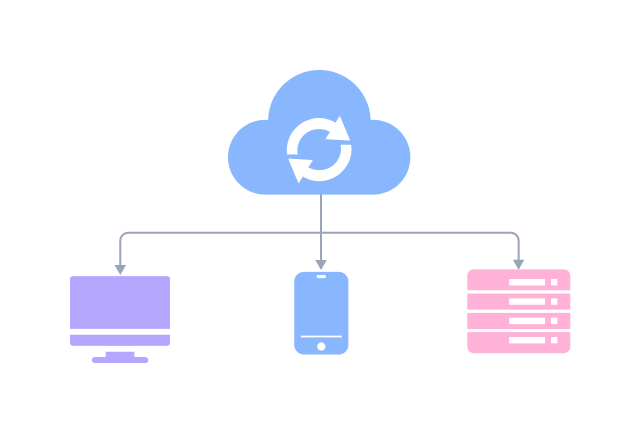
Cross-Device Sync

Real-time cloud storage, multi-device sync, version history, and secure data protection

Cross-Device Sync
Try for free

Onion Diagram How to Draw?

Onion DiagramHow to Draw?
1
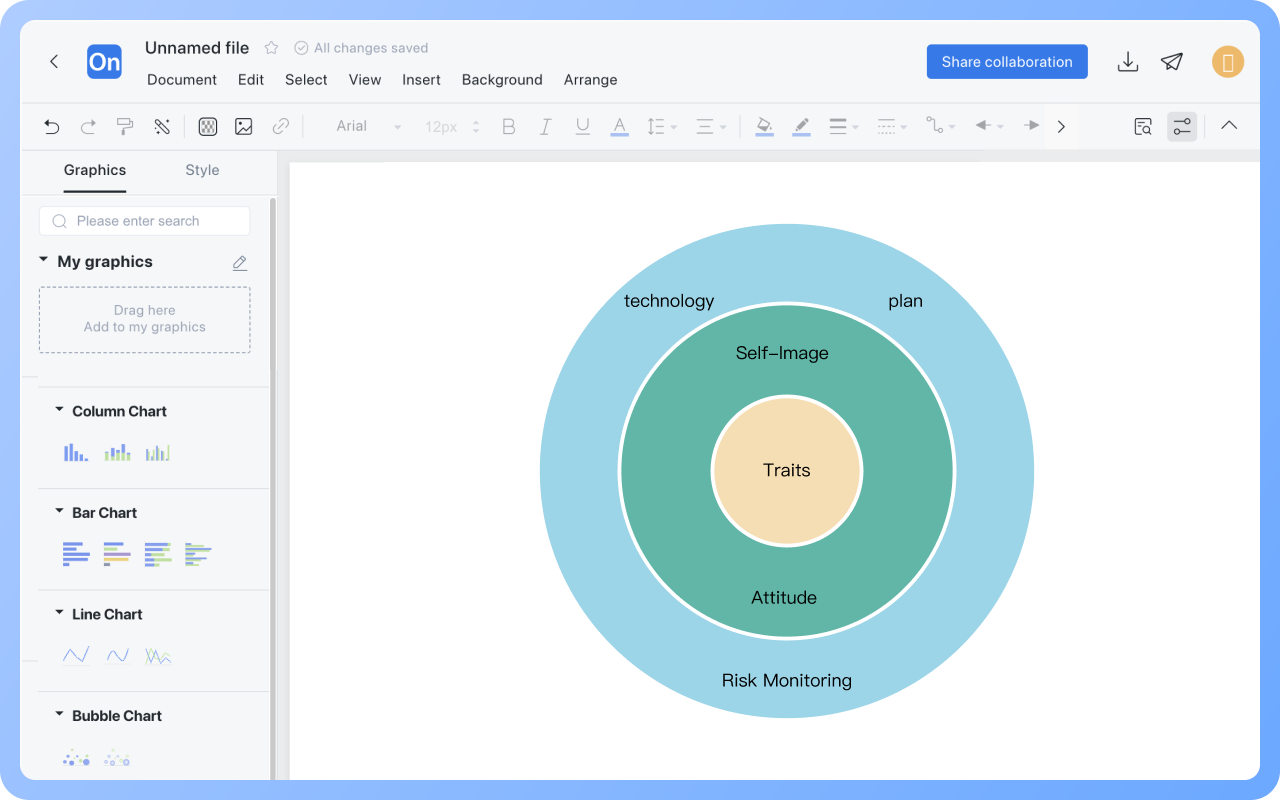
Create a new flowchart, check the categories of graphic symbols needed in the graphic area under 'More Shapes'.
2
Drag the circular element from the left side of the graphic area to the canvas, then drag the text box element onto the circle to name the central theme.
3
Continue dragging circular elements to the canvas, enlarge the size of the middle and outermost circles to make them gradually larger by hierarchy, and add related dimensions and external environment elements.
4
Enhance the logical relationship between layers through colors, lines, or icons.
5
After the onion diagram is drawn, it can be downloaded or shared with others.
Try for free

Onion Diagram Frequently asked questions

If the outer layer of the onion diagram covers the inner layer, how can the layering order be modified?

Select the outer circle of the onion diagram, right-click the canvas "Send to Back", to place the inner layer above the outer layer.

How to scale the size of the hierarchical elements of the onion diagram proportionally?

Select the hierarchical elements of the onion diagram, hold the shortcut keys "ctrl+Alt" and drag the corners of the elements to scale proportionally.

How to set different colors for different layers?

Select the shape, use the "Color Fill" in the top toolbar to set the color of the shape, and "Line Color" to set the color of the shape's border.

How to center distribute the layers of the onion diagram?

You can hold the shortcut key "Ctrl" to select all layers, then click "Distribute Align" - "Center Distribute" in the top toolbar.

Are there any templates or examples of onion diagrams available for reference?

You can visit the ProcessOn template community, where there are a large number of onion diagram templates and examples available for free cloning and use.

Try for free

Onion Diagram Template Recommendations

Onion Diagram Drawing Guide

Related Diagrams