

Register
Process Type
Graphical expression
Mind Type
Structured expression
Note Type
Efficient expression

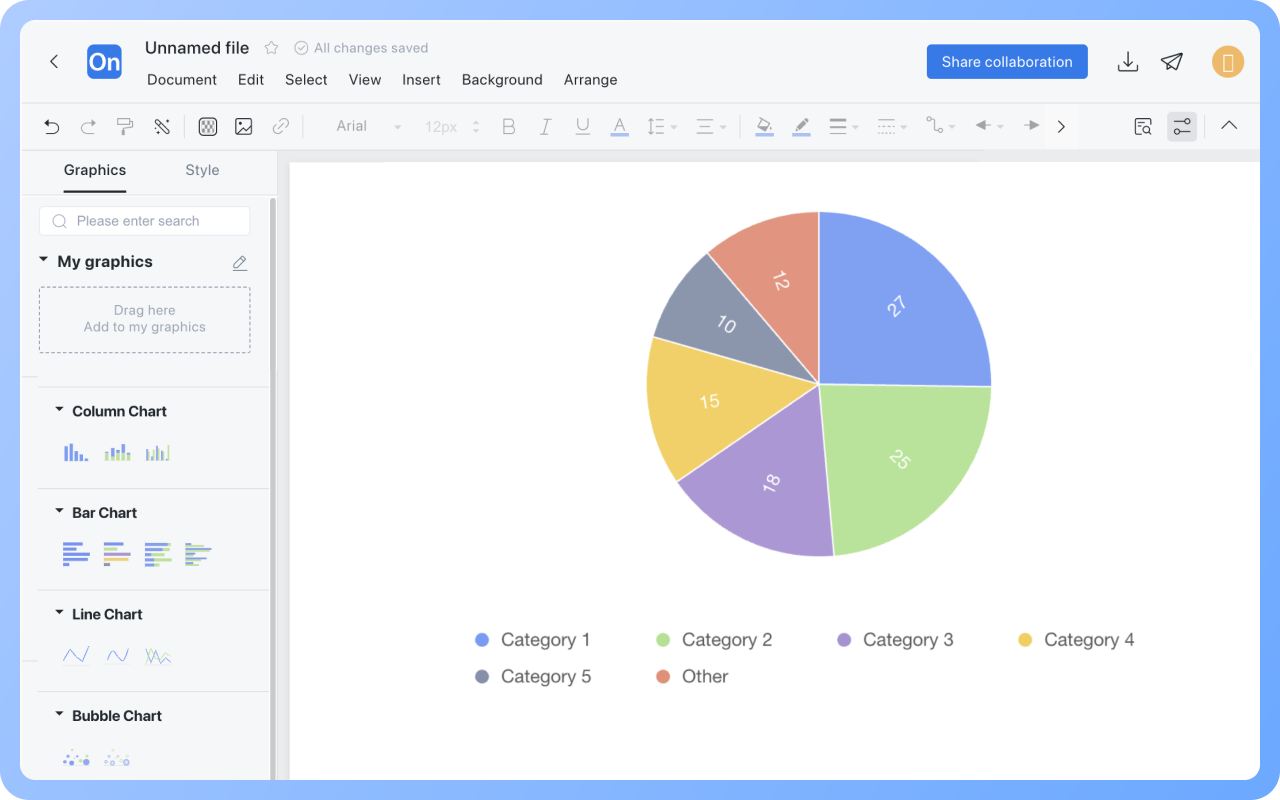
Online Pie Chart Creation Tool

Try for free
Online Pie Chart Creation Tool
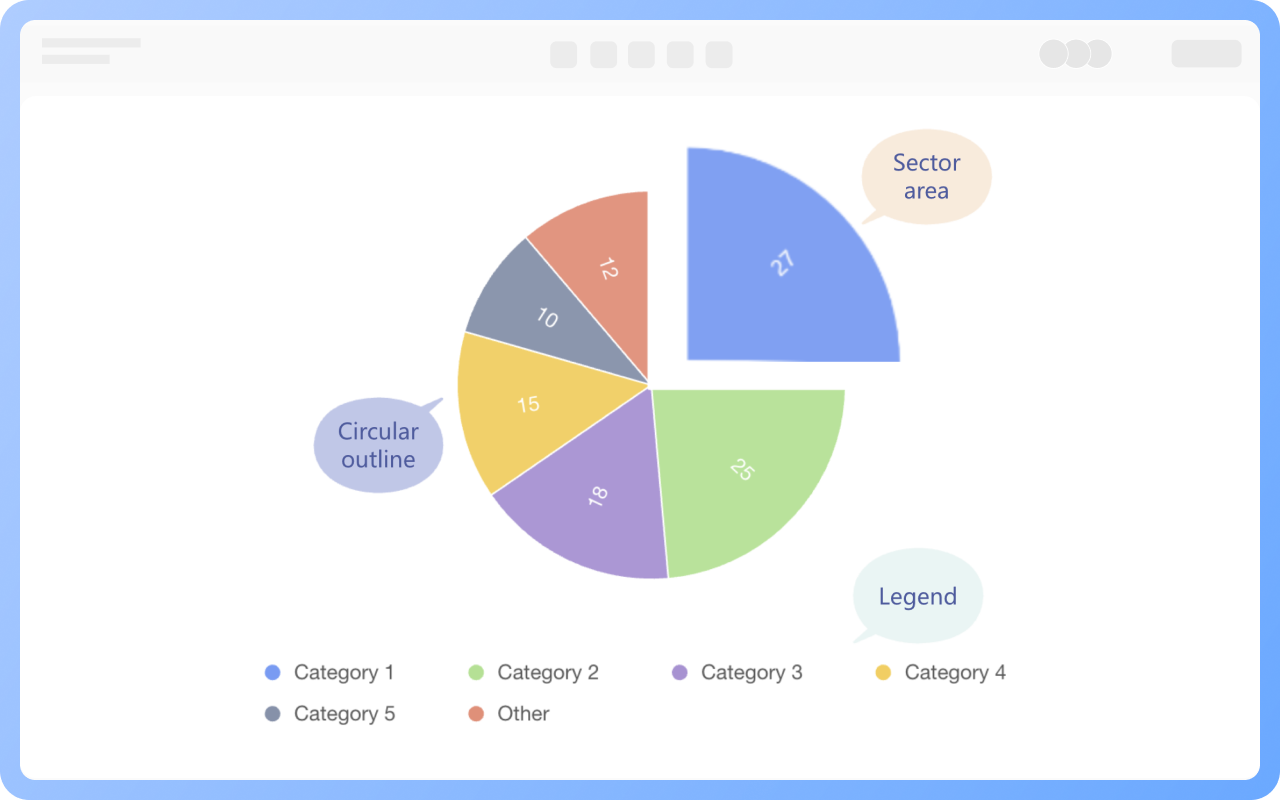
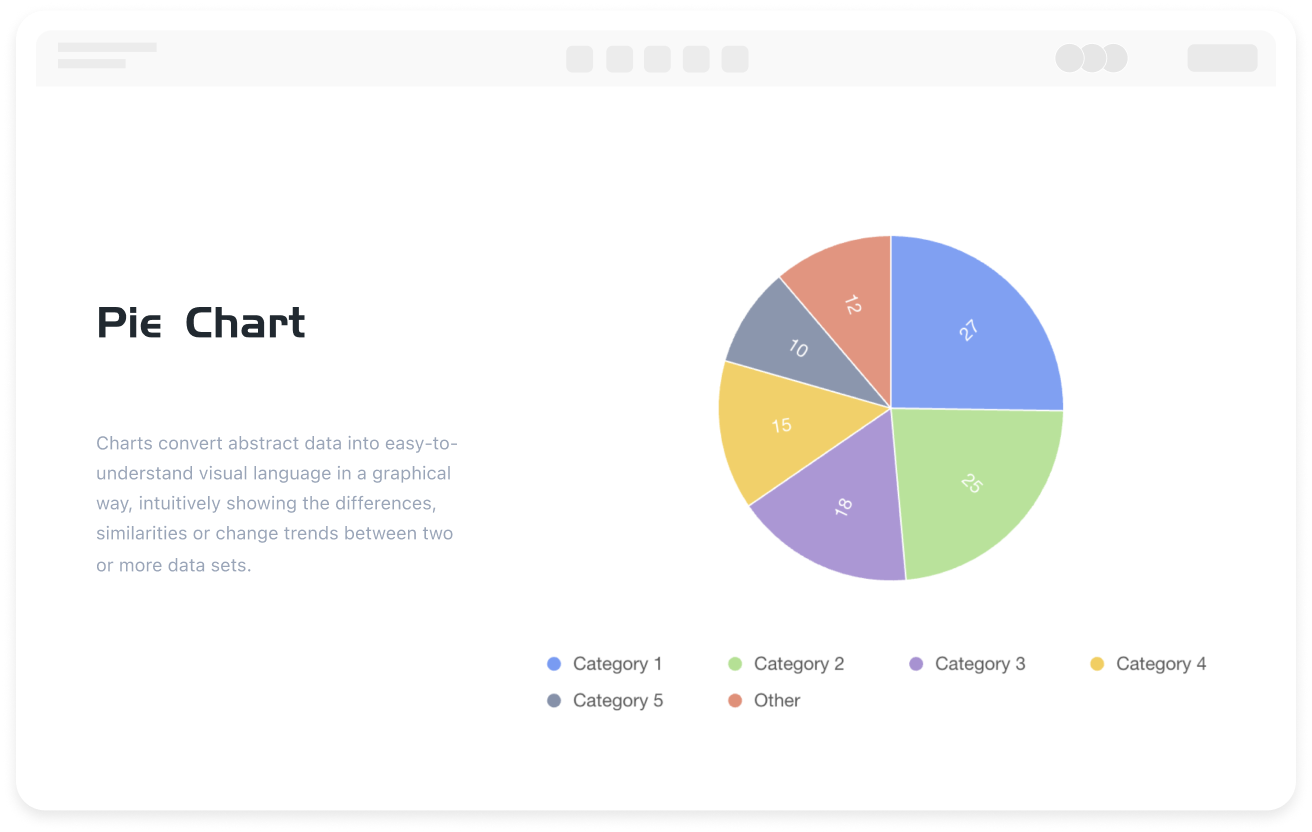
What is Pie Chart
Try for free
How to create a pie chart?
Try for free
How
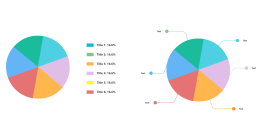
Supports Creating Multiple Types of Pie Charts
Try for free
Supports
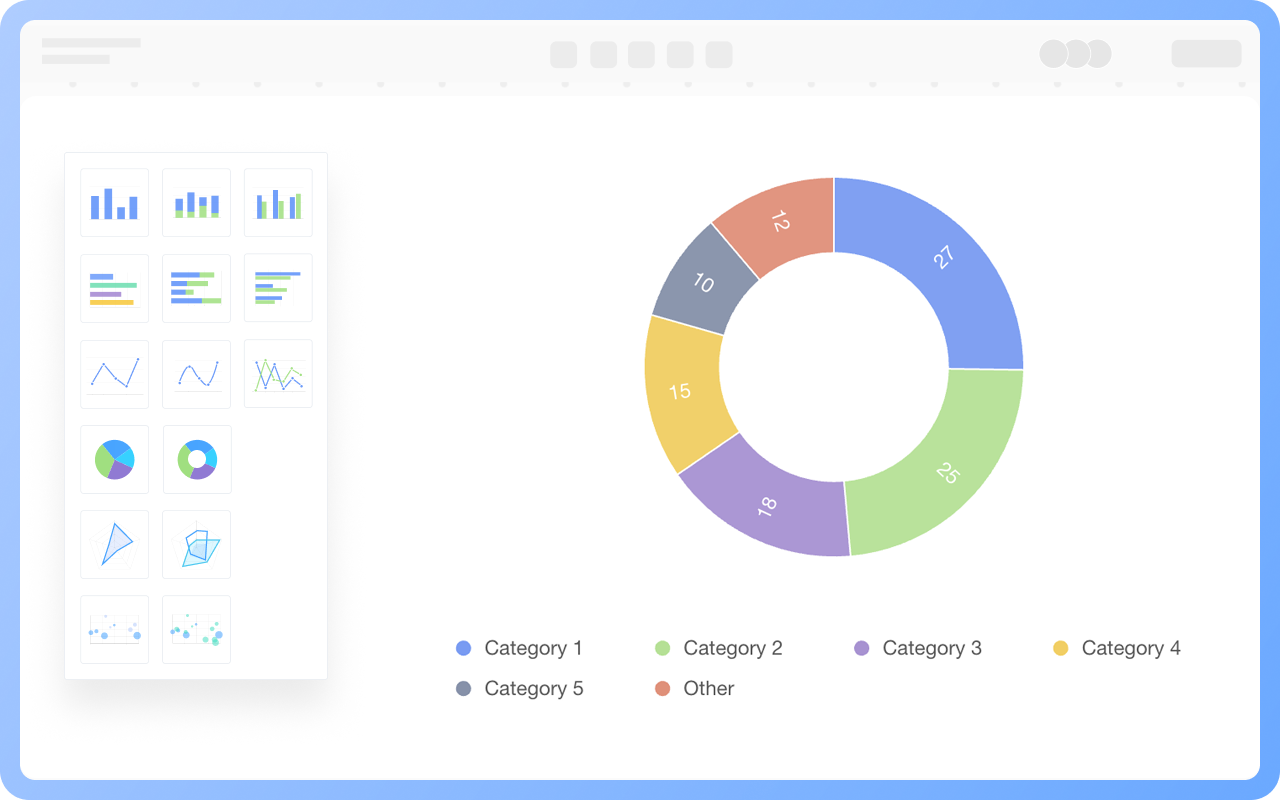
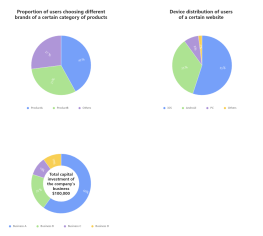
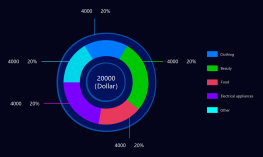
Donut Chart
Try for free
Donut
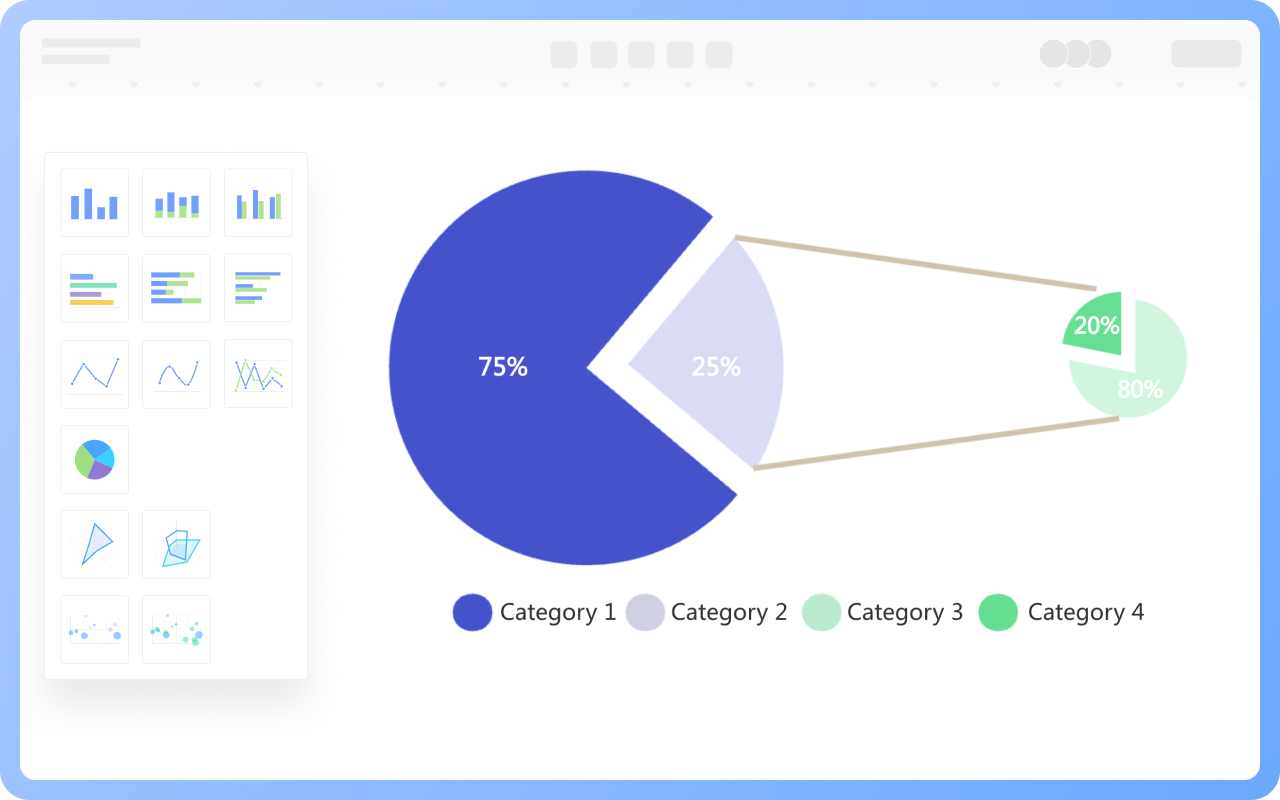
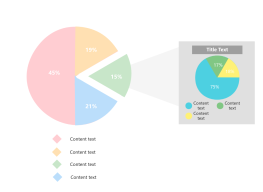
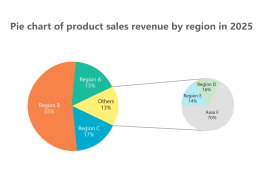
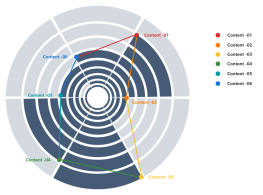
Composite Pie Chart
Try for free
Composite
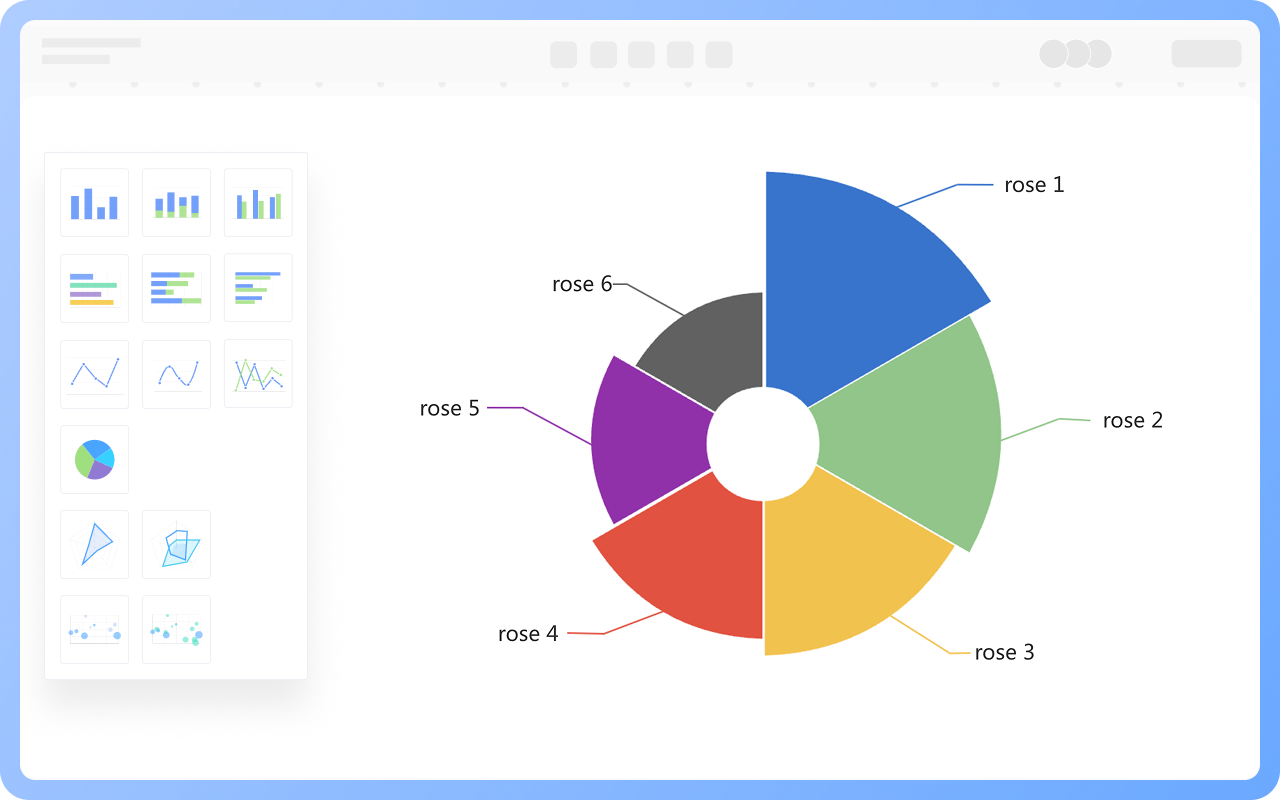
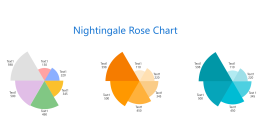
Nightingale Rose Chart
Try for free
Nightingale
Best Practices for Designing Pie Charts
Try for free
Best

ProcessOn Pie Chart Key Features

Online Collaboration

Supports real-time multi-user co-creation with shareable links for instant information transfer

Online Collaboration
One-Click AI Generation

Automatically generates graphics from text input and applies style enhancements

One-Click AI Generation
Personalized Style Customization

Prebuilt themes with full customization for personalized designs

Personalized Style Customization
Multiple Component Types

Supports icons, images, labels, LaTeX formulas, code blocks, links, attachments and more

Multiple Component Types
Multi-Format Compatibility

Export: PNG, VISIO, PDF, SVG | Import: VISIO, Mermaid

Multi-Format Compatibility
Cross-Device Sync

Real-time cloud storage, multi-device sync, version history, and secure data protection

Cross-Device Sync
Try for free

Pie Chart How to Draw?

Pie ChartHow to Draw?
1
Create a new flowchart, check the 'Chart' symbols in the 'More Shapes' section below the shapes area.
2
Drag a text box from the 'Basic Shapes' section on the left to the canvas and set the title of the pie chart.
3
Select the type of pie chart you want to use and drag the pie chart shape to the canvas.
4
Select the pie chart, and you can switch the pie chart type using the toolbar above. Click the 'Edit' button to set the category name and specific values on the right.
5
Click on different series of the pie chart to display only a specific series of data.
6
Check if the data values in the pie chart are filled in accurately. In this way, a pie chart is completed.
Try for free

Pie Chart Frequently asked questions

How to add a title to a pie chart?

Drag the 'Text' graphic from the 'Basic Graphics' section on the right to above the pie chart, and double-click to set the title.

How to add series or categories to a pie chart?

Double-click the pie chart, and add text or numbers in the dashed box of existing categories or series in the right menu bar.

How to delete series or categories from a pie chart?

Double-click the pie chart, select series, category names, or specific data in the right menu bar, click the 'Delete' button, and choose to delete the entire row or column.

How to hide the legend of a pie chart?

Double-click the pie chart, and you can hide the legend in the right menu bar.

How to display data and percentages in a pie chart?

In ProcessOn, use the pie chart from the 'Chart' type in flowcharts, and it will automatically display after filling in the data.

How to export a pie chart as an image or PDF format

Click the 'Download' button at the top right to export the pie chart as PNG, JPG, PDF, etc.

Try for free

Pie Chart Template Recommendations

Pie Chart Drawing Guide

Related Diagrams