

Register
Process Type
Graphical expression
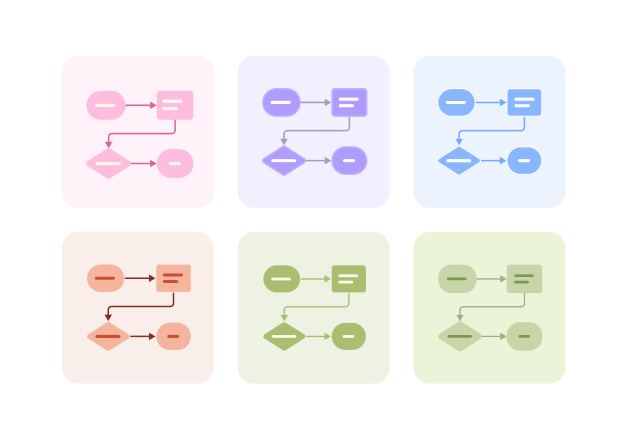
Mind Type
Structured expression
Note Type
Efficient expression

Online Bar Chart Maker

Free to use
Online Bar Chart Maker
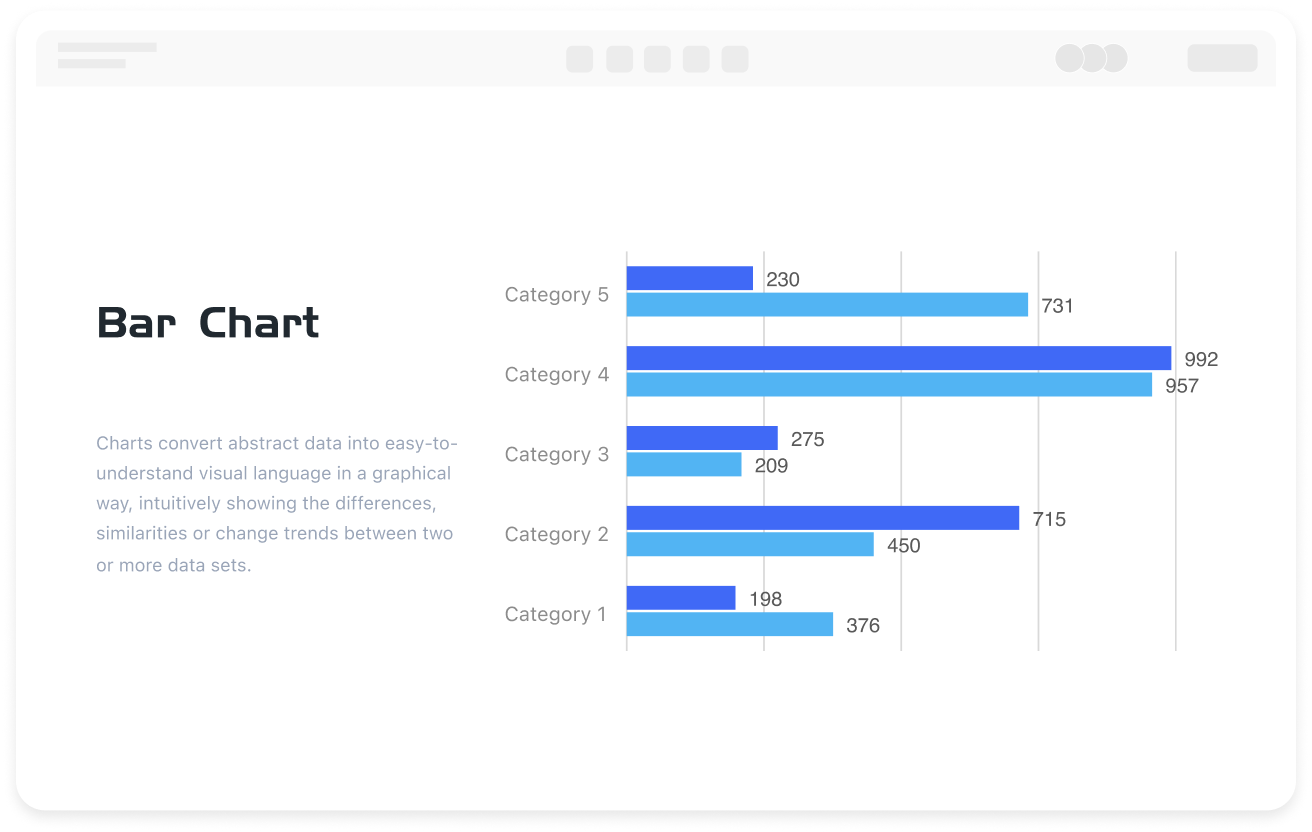
What is Bar Chart

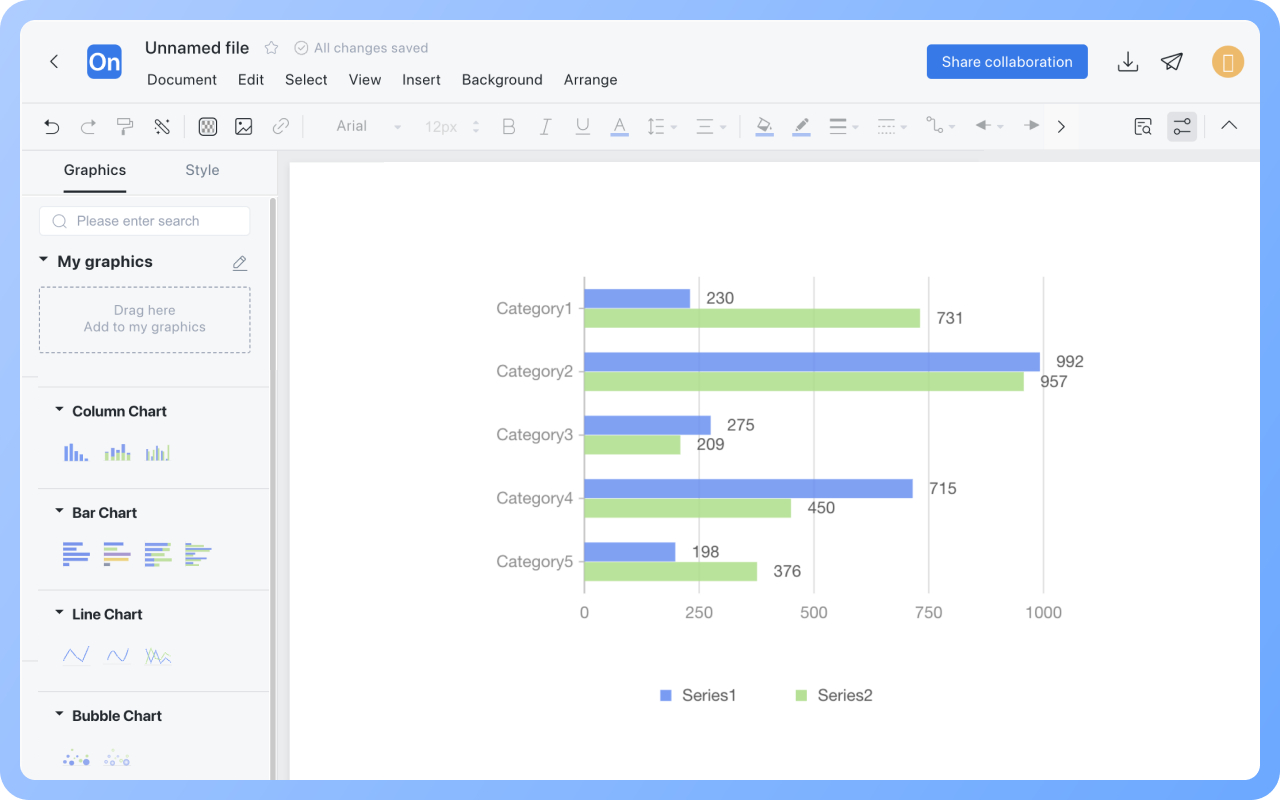
A bar chart, a type of comparison chart, is a chart that compares data sizes using bars of equal width and length. Each bar represents a data category, and the height or length of the bar represents the specific value for that category.

ProcessOn supports online bar chart creation and offers a vast library of copyable bar chart templates and examples, allowing you to easily create professional and aesthetically pleasing bar charts. It also supports exporting bar charts to image, PDF, and other formats.

Free to use

ProcessOn Bar Chart Key Features

Online Collaboration

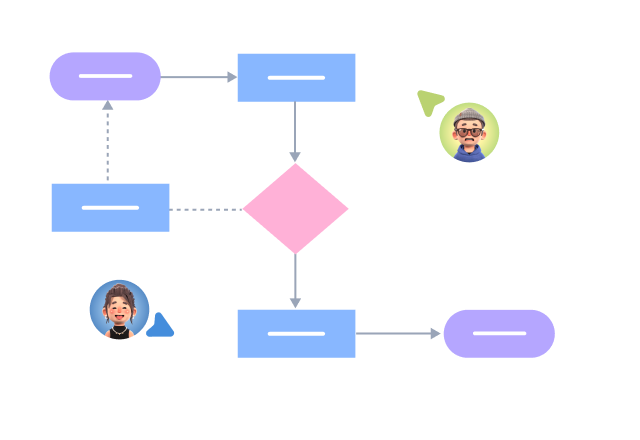
Supports real-time multi-user co-creation with shareable links for instant information transfer

Online Collaboration
One-Click AI Generation

Automatically generates graphics from text input and applies style enhancements

One-Click AI Generation
Personalized Style Customization

Prebuilt themes with full customization for personalized designs

Personalized Style Customization
Multiple Component Types

Supports icons, images, labels, LaTeX formulas, code blocks, links, attachments and more

Multiple Component Types
Multi-Format Compatibility

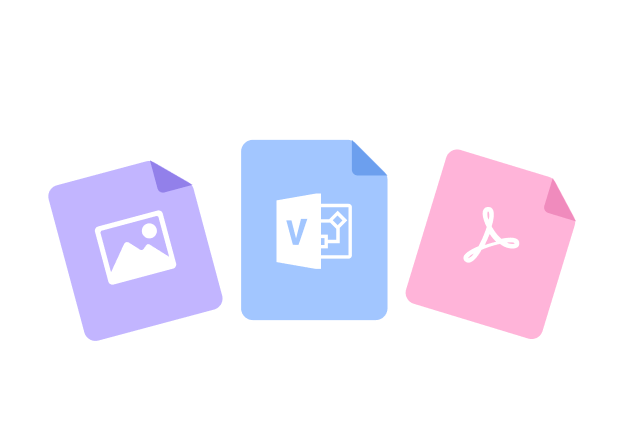
Export: PNG, VISIO, PDF, SVG | Import: VISIO, Mermaid

Multi-Format Compatibility
Cross-Device Sync

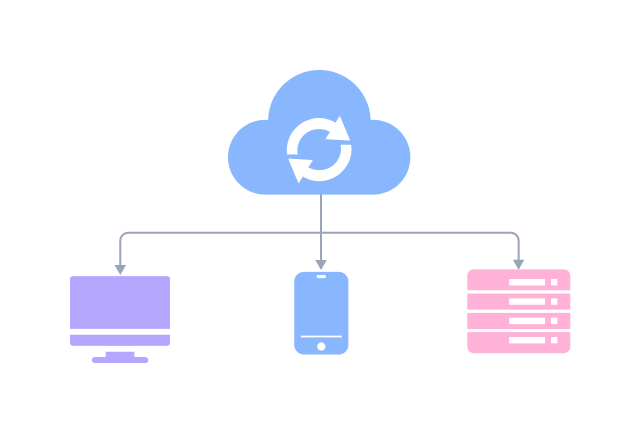
Real-time cloud storage, multi-device sync, version history, and secure data protection

Cross-Device Sync
Involve your team in bar chart design and creation

ProcessOn supports online sharing and collaboration of bar charts, inviting team members to the bar chart maker for real-time editing and modification. It supports exporting to image, PDF, and other formats, which you can then import into Excel or PowerPoint presentations for use.
Create Charts Online
Involve
ProcessOn supports multiple bar chart types

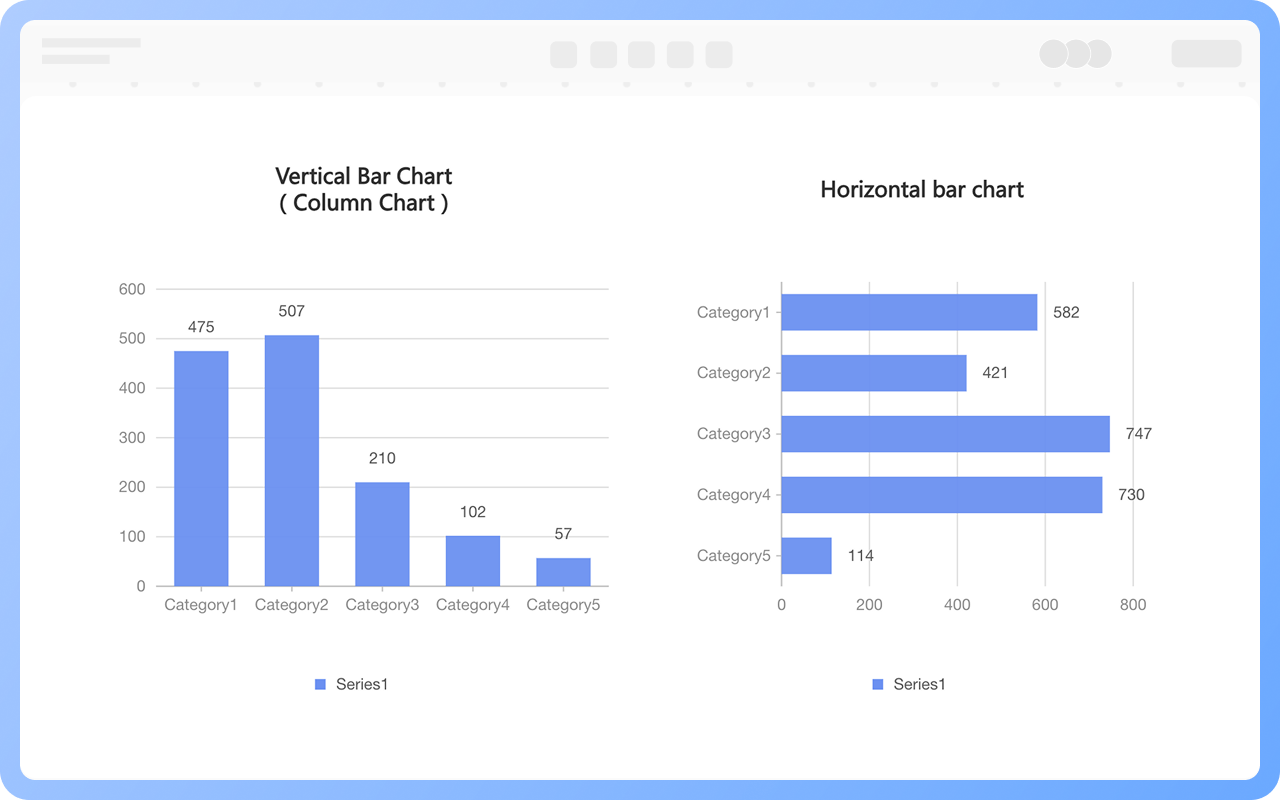
Bar charts are categorized by direction into vertical bar charts (column charts) and horizontal bar charts.

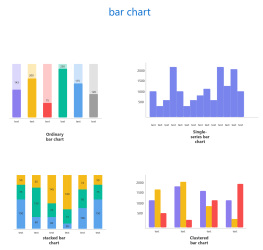
Bar charts are also categorized by data display format into basic bar charts, grouped bar charts, stacked bar charts, segmented bar charts, and two-way bar charts.

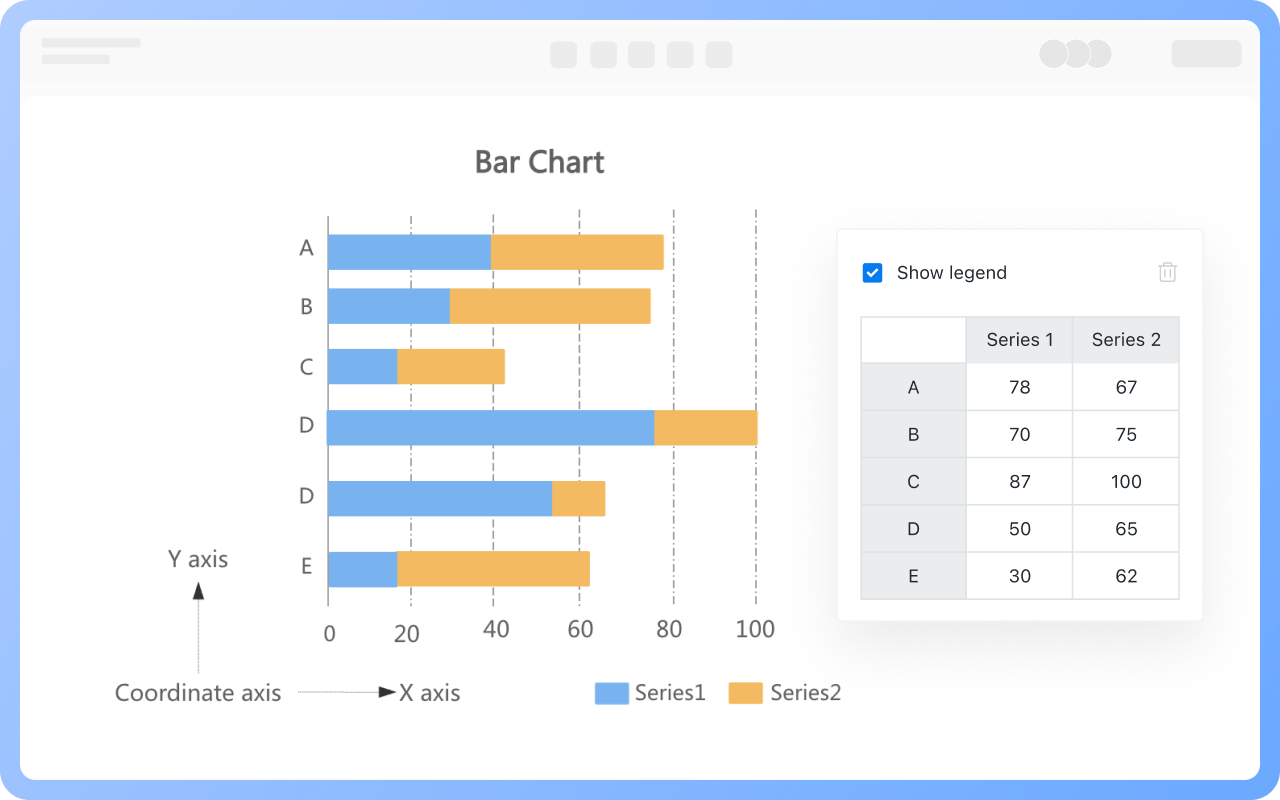
ProcessOn supports the creation of various bar chart types. You can freely set the data on the X and Y axes and instantly see the effect of the modified bar chart. A large number of beautiful bar chart templates are also available for reference in the template community.

Create Charts Online
ProcessOn
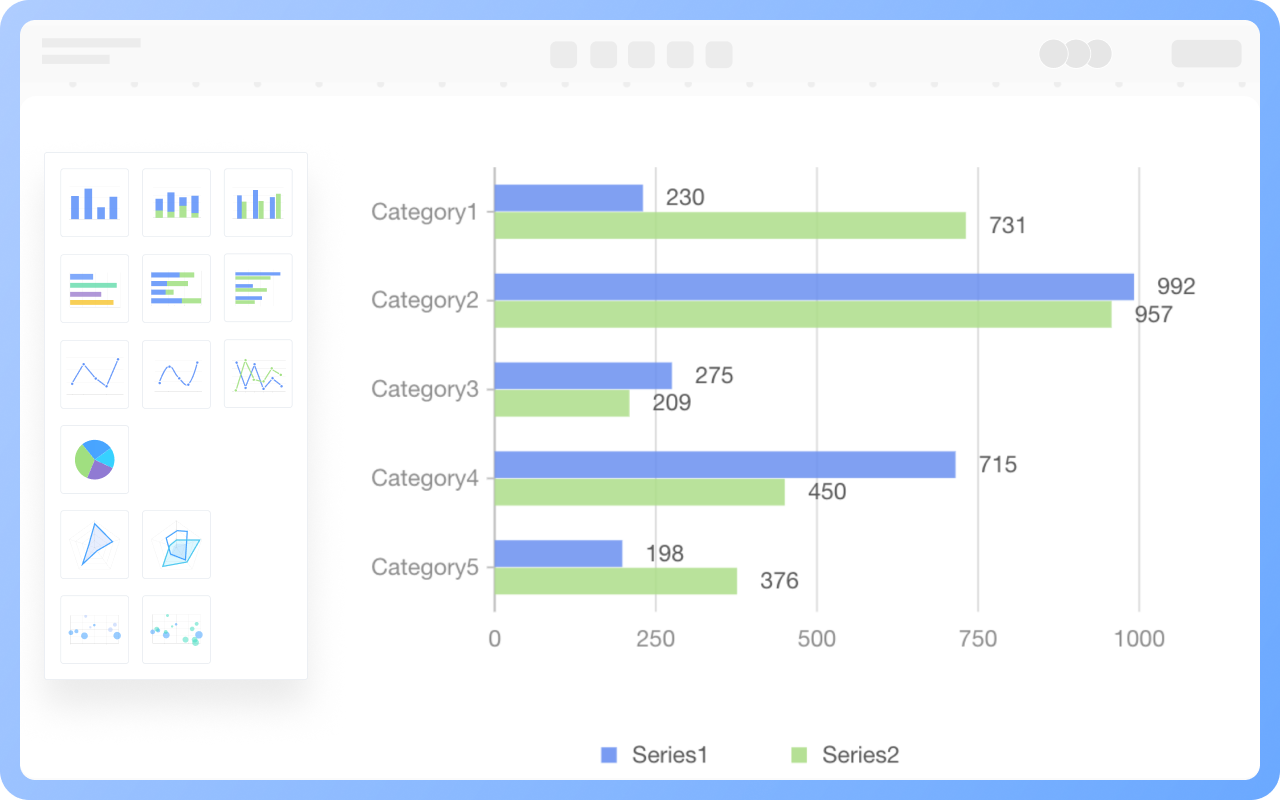
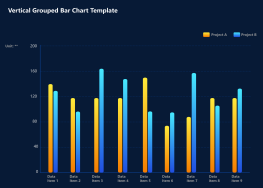
Grouped Bar Chart

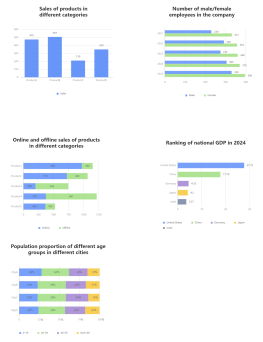
Displays data for multiple categories in groups, with each group containing multiple bars, each representing a value under a subcategory or condition.
Grouped bar charts are suitable for comparing differences under different conditions within the same category, such as data from different years, regions, or genders.

Create Charts Online
Grouped
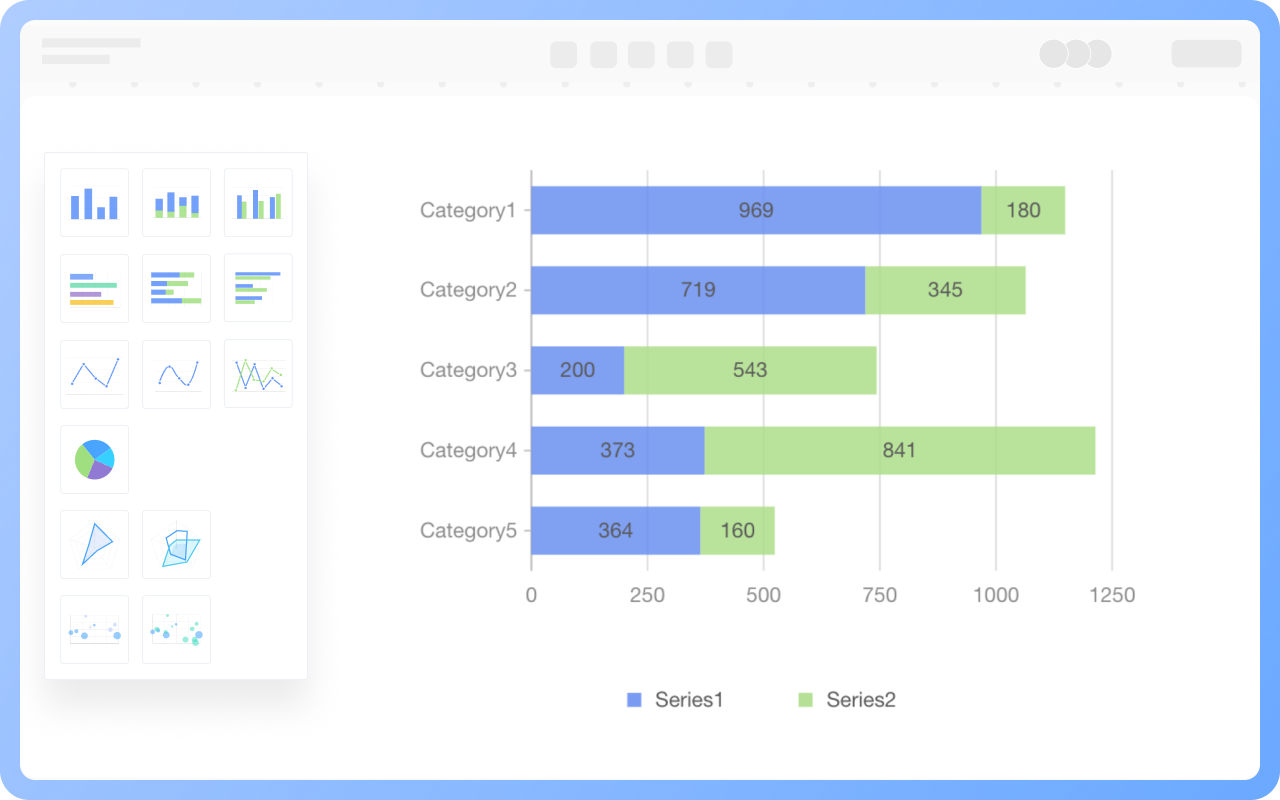
Stacked Bar Chart

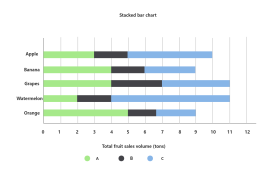
Stacks data from multiple categories together to form a single bar, with each part representing a subcategory, used to show the proportion of each part within the whole.
Stacked bar charts are suitable for displaying the composition of the overall total and the contribution of each subcategory, such as the total sales of different products and the contribution of each subcategory.

Create Charts Online
Stacked
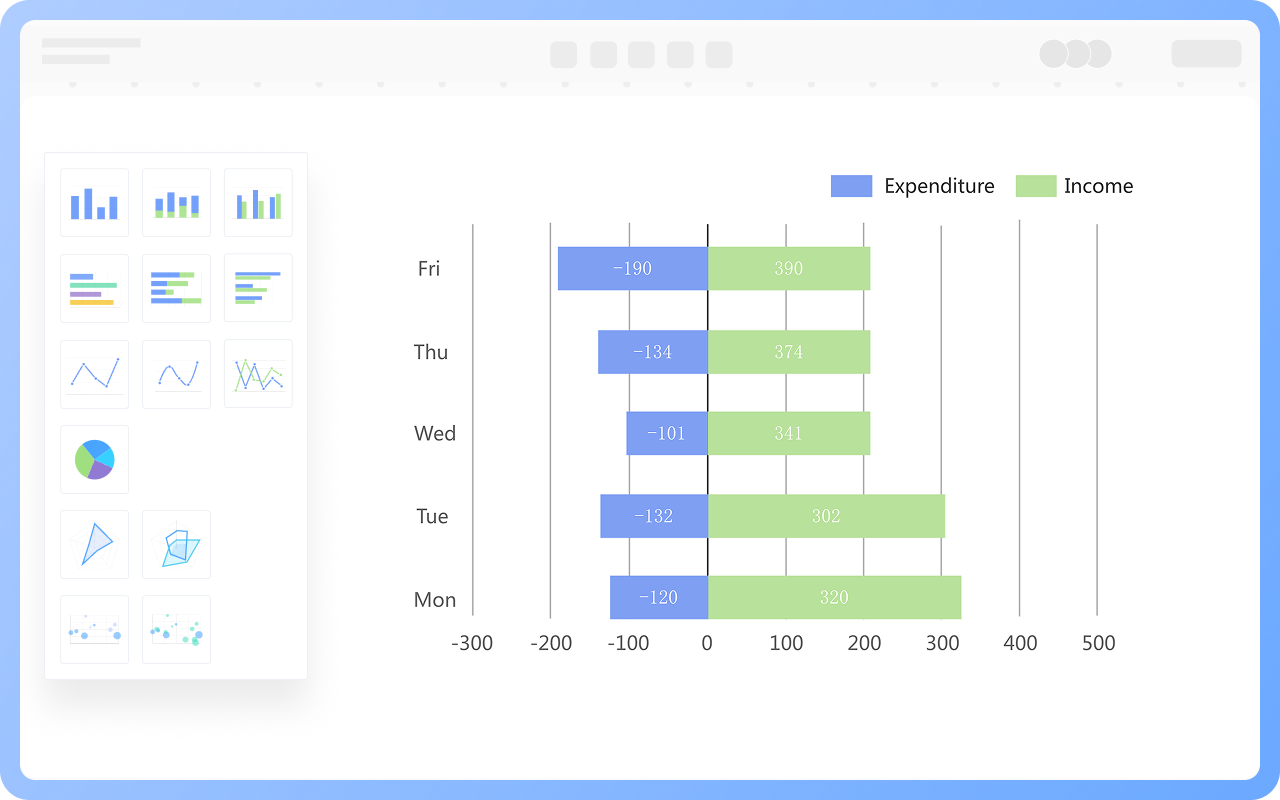
Bidirectional Bar Chart

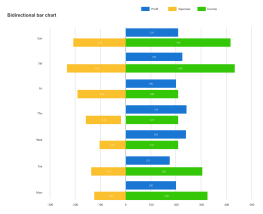
In a bar chart, there are two sets of bars, one extending in one direction and the other extending in the opposite direction, forming a contrast in quantity or proportion.
Bidirectional bar charts are suitable for showing increases and decreases or comparisons in data, such as a company's annual financial performance.

Create Charts Online
Bidirectional

Bar Chart How to Draw?

Bar ChartHow to Draw?
1
Create a new flowchart, and in the shapes area below 'More Shapes', check 'Chart' symbols to the shapes area.
2
Drag a text box from the 'Basic Shapes' in the left shapes area to the canvas, and set the title name of the bar chart.
3
Select the category of the bar chart you want to use, and drag the bar chart shape to the canvas.
4
Select the bar chart, the top toolbar can switch the bar chart category, click the 'Edit' button, and the right side can set the category name and specific values of the bar chart.
5
Click on different series of the bar chart to display only a specific series of data.
6
Check whether the data values in the bar chart are filled in accurately. In this way, a bar chart is completed.
Free to use

Bar Chart Drawing Guide

  • What is a bar chart and how to draw it?

    What is a bar chart and how to draw it?

    In today's data-driven world, how to efficiently and intuitively display data has become the focus of attention of practitioners in various industries. As one of the most basic and commonly used tools in the field of data visualization, bar charts play an irreplaceable role in information transmission with their concise and clear characteristics. This article will take you to an in-depth understanding of the definition, application scenarios, types, production tools and templates of bar charts .
    Skye
    2025-04-27
    2068
  • What is a column charts and how to draw it?

    What is a column charts and how to draw it?

    As a basic and powerful tool in the field of data visualization, column charts have become a powerful assistant for people to process and interpret data with their concise and clear presentation. This article will comprehensively introduce column charts from the perspective of concepts, types, and production tutorials, and will explain them with examples and templates to help you master this tool .
    Skye
    2025-06-02
    2725
  • What is a line chart and how to draw it?

    What is a line chart and how to draw it?

    In the field of data visualization, line charts, as a classic and practical chart type, have become the preferred tool for displaying data trends due to their simplicity and intuitiveness. This article will explore the definition, applicable scenarios, types, production tools, and creation methods of line charts , and provide specific examples to help you fully master the application of line charts.
    Skye
    2025-05-07
    2271
  • What is a pie chart and how to draw one?

    What is a pie chart and how to draw one?

    In the era of data-driven decision-making, charts have become the "universal language" in business analysis, academic research, and project management. As a basic and powerful tool in the field of data visualization, pie charts have become a powerful assistant for people to process and interpret data with their concise and clear presentation. This article will help you systematically master the concept, classification and practical skills of pie charts, helping you easily master this classic chart form.
    Skye
    2025-05-19
    4148

Bar Chart Template Recommendations

More Templates

Bar Chart Frequently asked questions

How to add a title to a bar chart?

Drag the 'Text' shape from the 'Basic Shapes' section on the right to above the bar chart, and double-click to set the title.

How to add a series or category to a bar chart?

Double-click the bar chart, and add text or numbers in the dashed box after the existing categories or series in the right menu bar.

How to delete a series or category from a bar chart?

Double-click the bar chart, select the series, category name, or specific data in the right menu bar, click the 'Delete' button, and choose to delete the entire row or column.

How to hide the legend of a bar chart?

Double-click the bar chart, and the legend can be hidden in the right menu bar.

What is the difference between a bar chart and a column chart?

Bar charts and column charts are essentially different presentations of the same type of chart. The core difference is in the orientation layout: column charts have vertical bars, suitable for displaying time series data; bar charts have horizontal bars, suitable for displaying longer category labels.

What is the difference between a bar chart and a histogram?

Bar charts display discrete data (such as product categories, country names), with gaps between bars indicating independent categories. The horizontal axis is for categorical variables, and the vertical axis is for values, used to compare values across different categories. Histograms display continuous data (such as height, test scores), with no gaps between bars indicating continuous intervals. The horizontal axis represents numerical intervals, and the vertical axis represents frequency, used to show the distribution of data.

What is the difference between a bar chart and a line chart?

Bar charts emphasize comparison between categories, suitable for displaying static or categorical data. Line charts focus on showing trends of data changes over time, suitable for continuous data or situations requiring observation of time series.

Related Diagrams