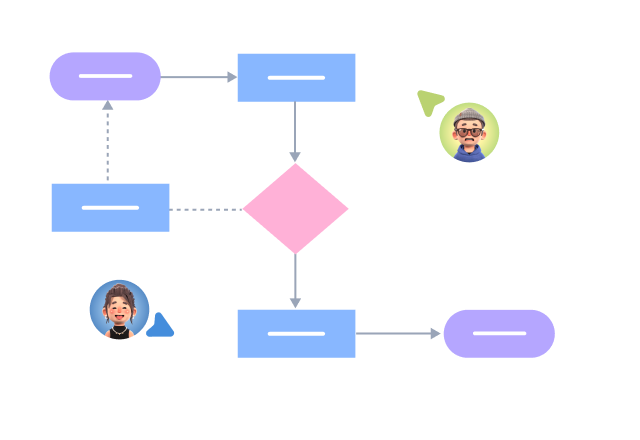


Supports real-time multi-user co-creation with shareable links for instant information transfer
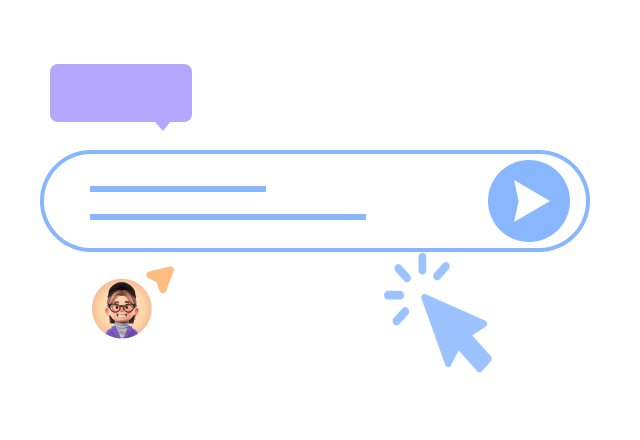
Automatically generates graphics from text input and applies style enhancements
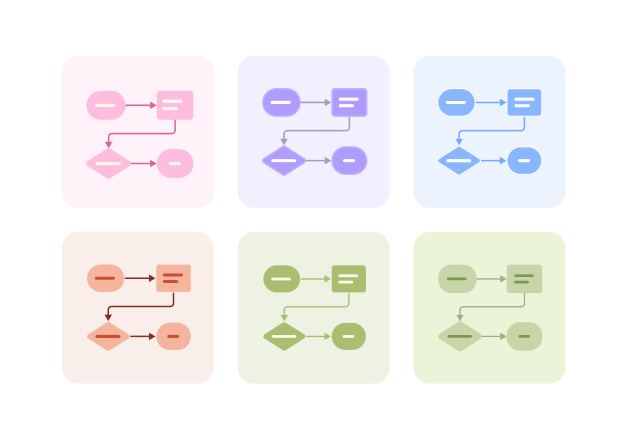
Prebuilt themes with full customization for personalized designs
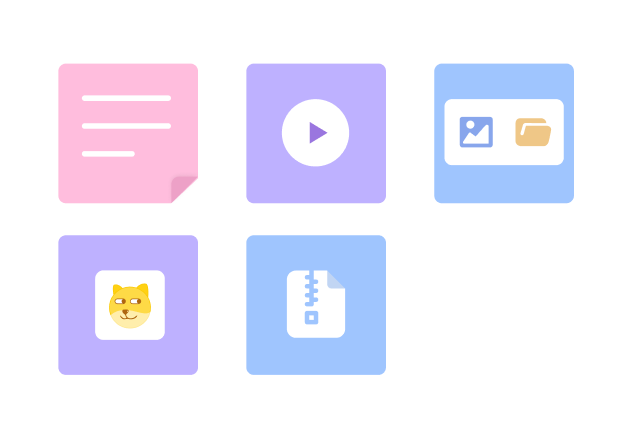
Supports icons, images, labels, LaTeX formulas, code blocks, links, attachments and more
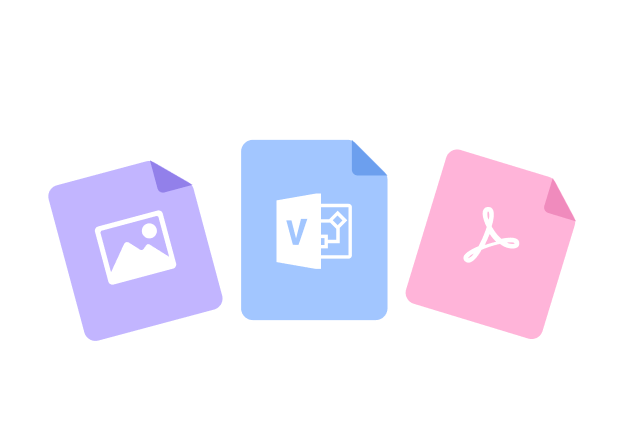
Export: PNG, VISIO, PDF, SVG | Import: VISIO, Mermaid
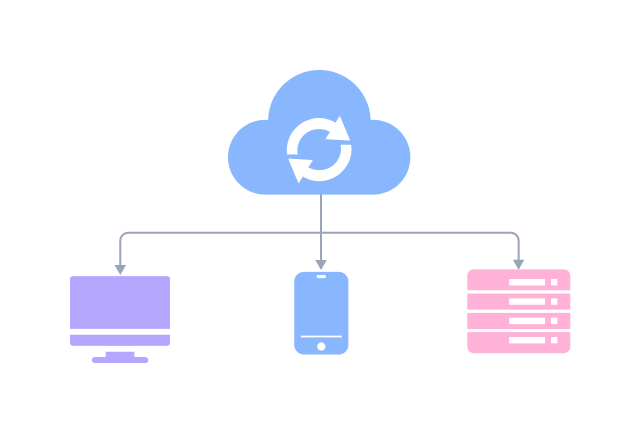
Real-time cloud storage, multi-device sync, version history, and secure data protection
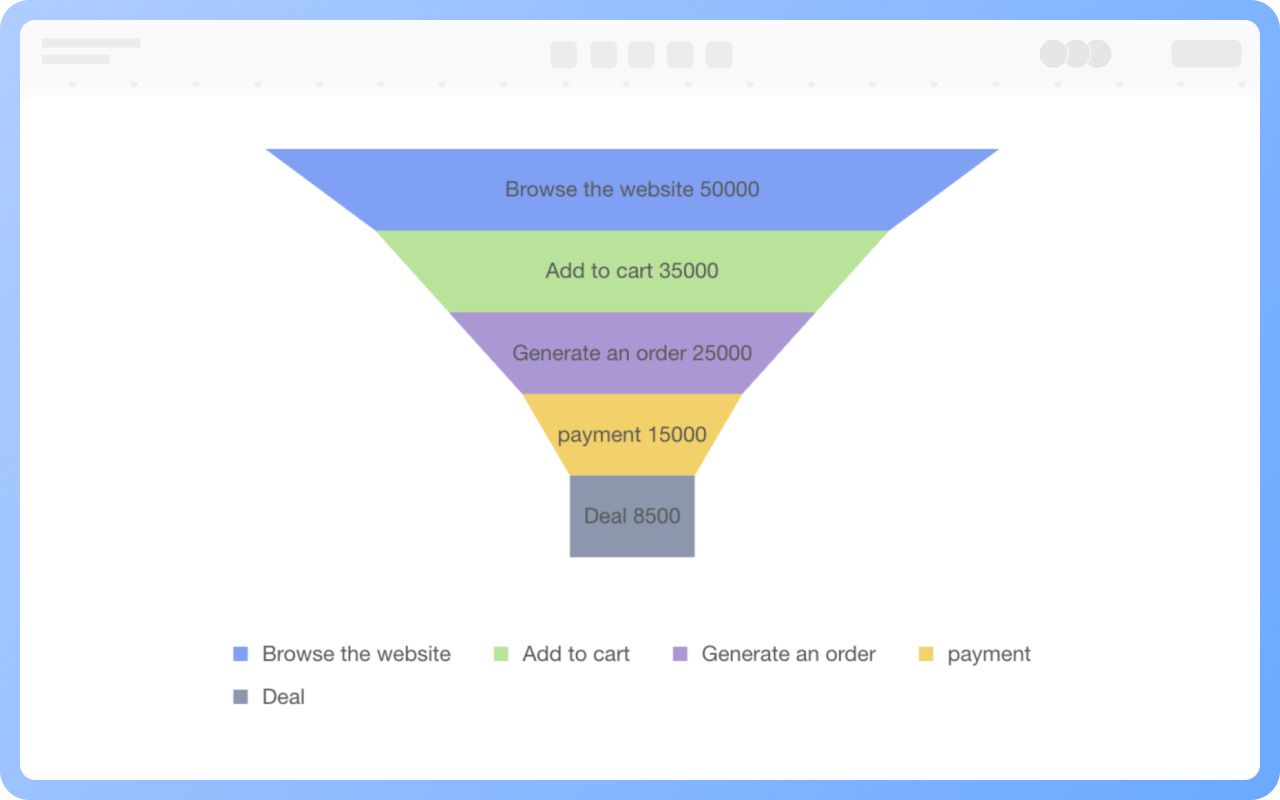
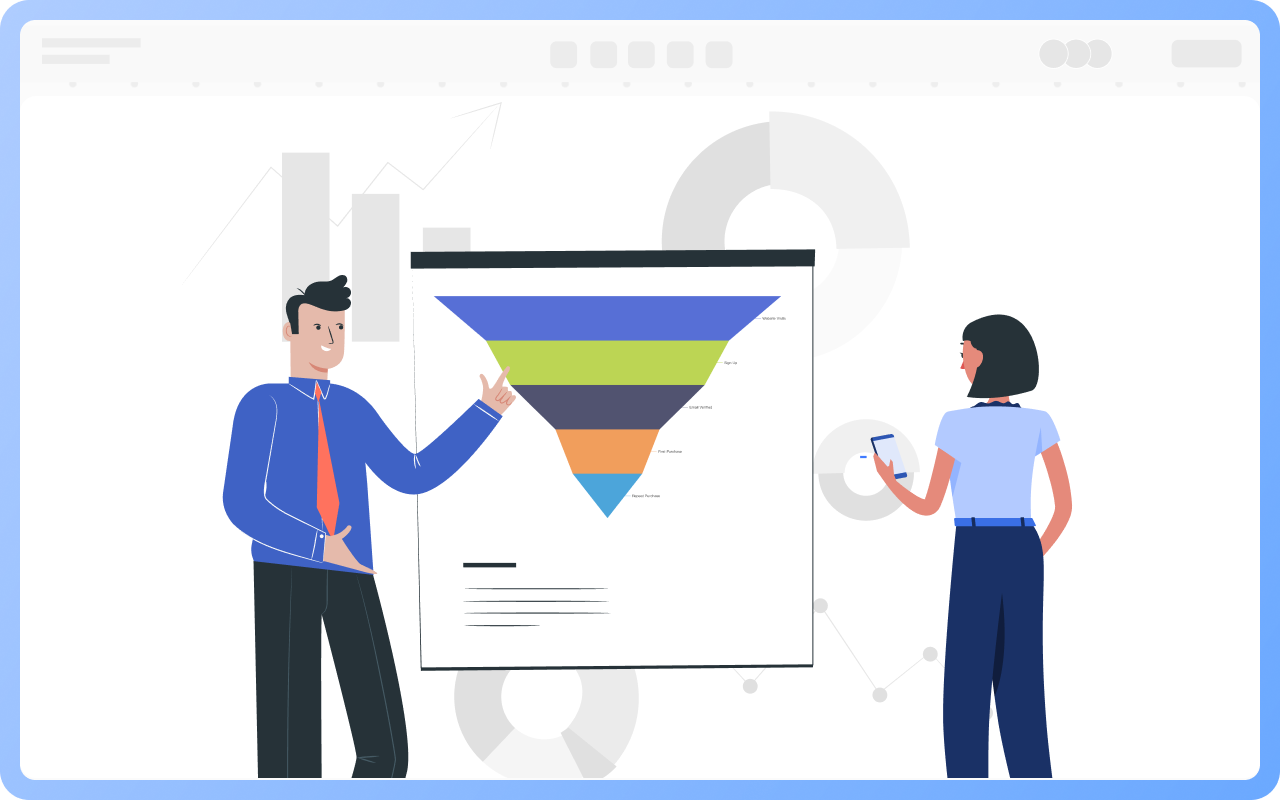
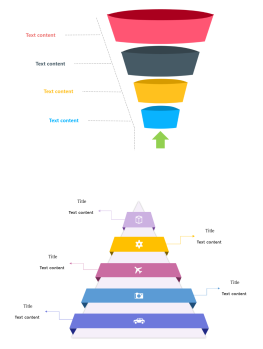
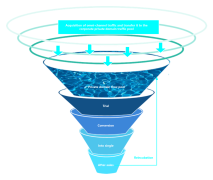
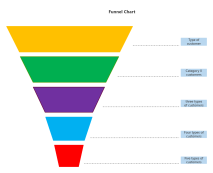
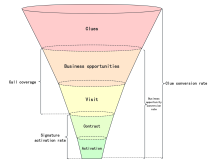
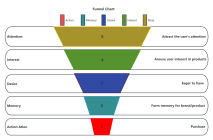
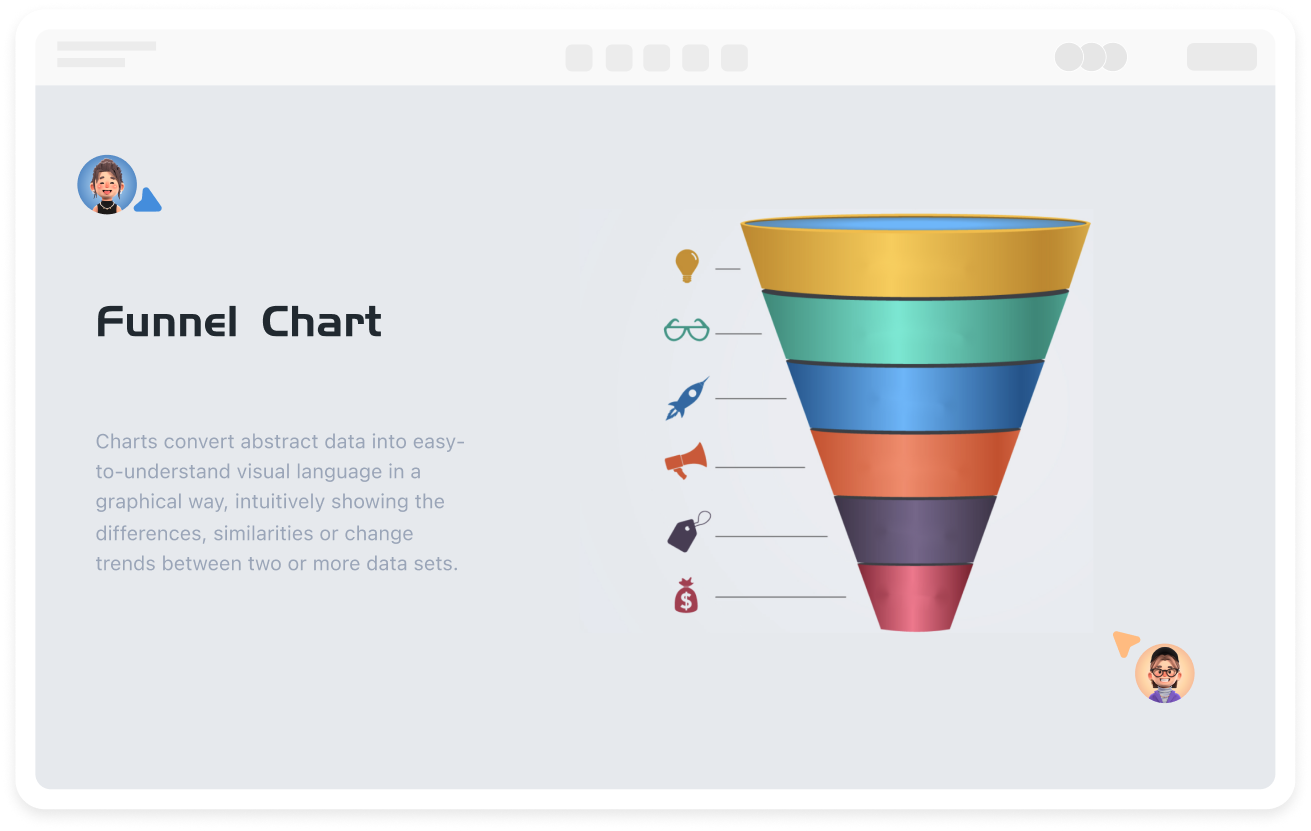
They are suitable for analyzing processes with a clear sequence of conversions (such as sales, user registration, ad clicks) to identify loss points (such as a high dropout rate from 'add to cart' to 'payment').
Funnel charts emphasize process reduction and conversion rates (width reflects data volume), while bar charts compare independent category values (such as sales of different products).
Conversion rate = number of users at current stage ÷ number of users at initial stage.
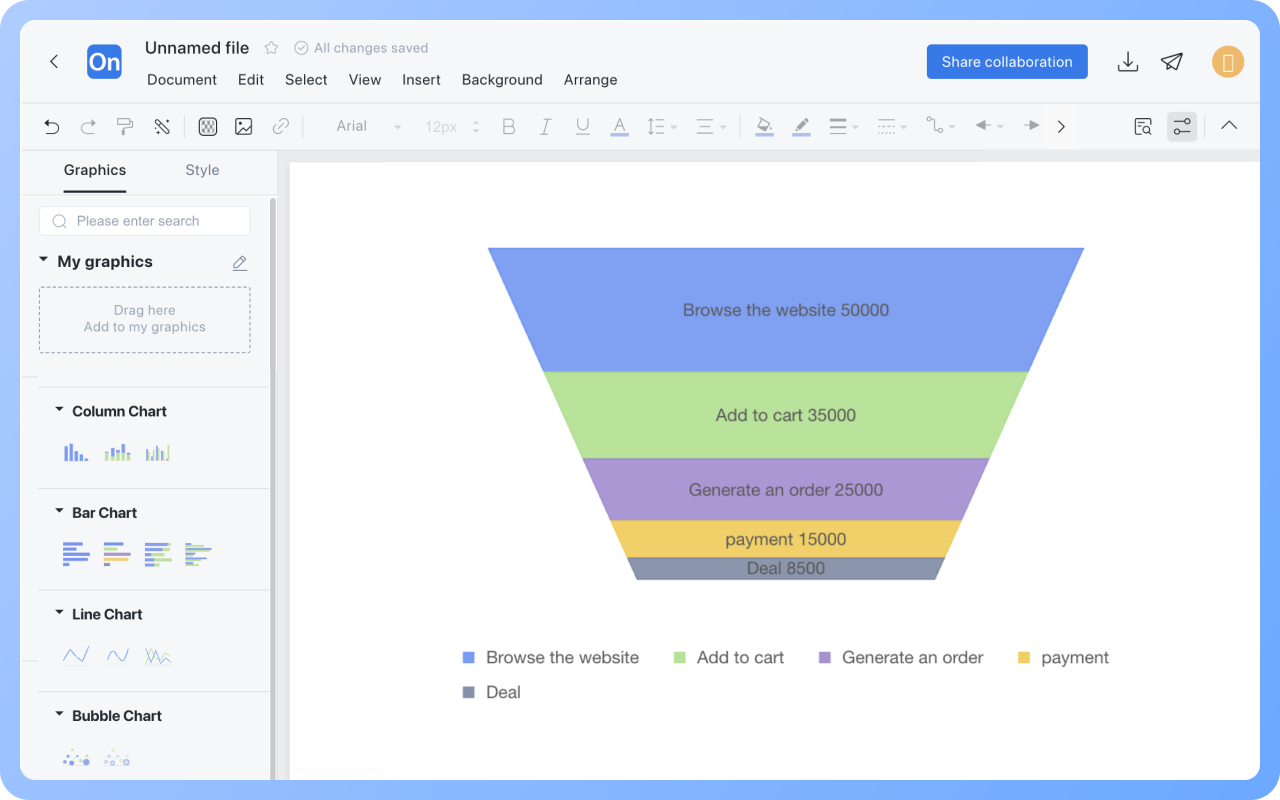
Drag the 'Text' graphic from the 'Basic Graphics' on the right to the top of the funnel chart, and double-click to set the title.
Double-click the funnel chart, select the stage name or specific data in the right menu bar, click the 'Delete' button, and choose to delete the entire row.
Click the legend name below the funnel chart; if the legend turns gray, that stage will be hidden in the funnel chart.
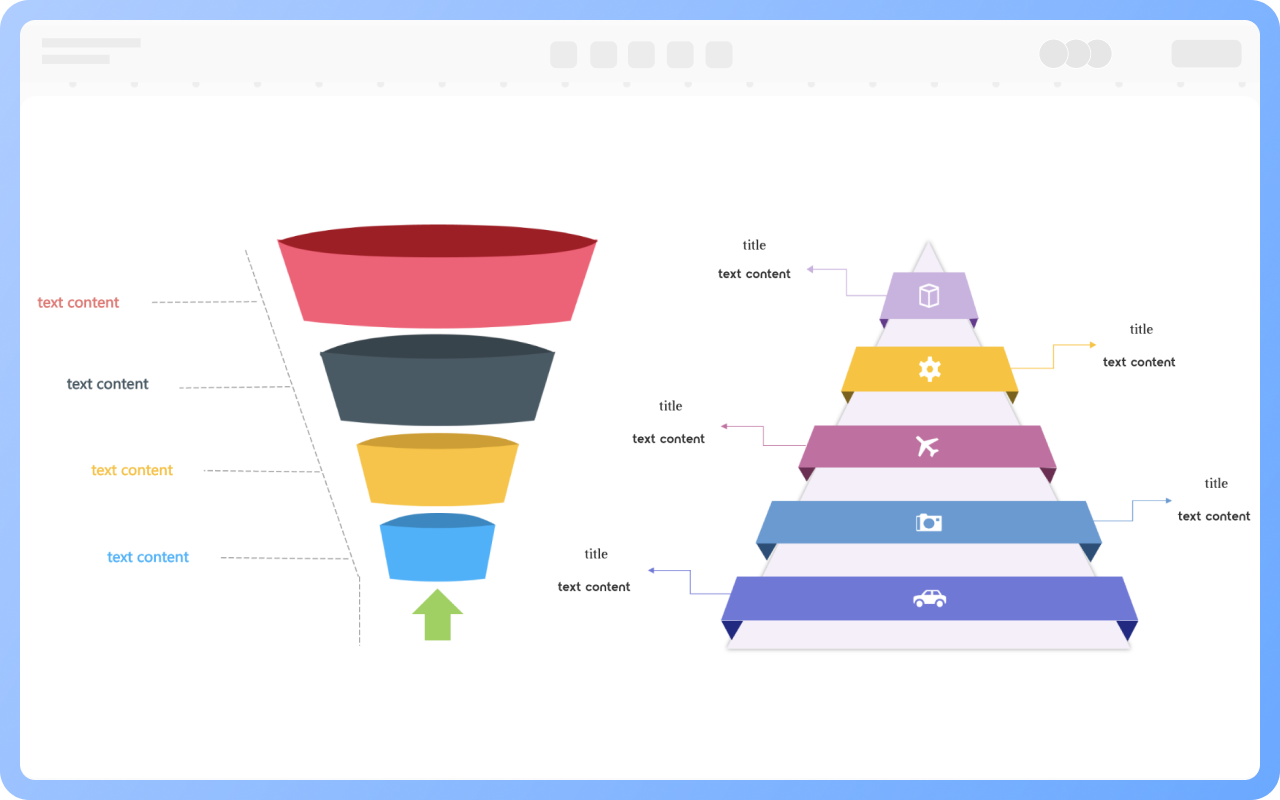
The text, lines, and graphic styles of funnel charts under the 'Chart' category cannot be modified. You can use rectangle and other graphic elements under 'Basic Graphics' to draw a funnel chart, which allows modifications to text, lines, and graphic styles.
Click the 'Download' button in the upper right corner to export the funnel chart as PNG, JPG, PDF, etc.