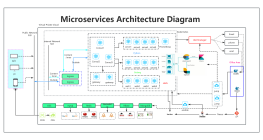
Process Type
Graphical expression
Mind Type
Structured expression
Note Type
Efficient expression
Treemap
Bracket Diagram

Default Mode





Facing more and more online mind map tools, many people will encounter the same problem: the functions seem to be similar, which one should they choose?
Some people need to organize study notes and want to quickly build a knowledge framework; some people need to sort out project plans with colleagues and want multiple people to edit them online; others often make work reports and need to export mind maps as PDF, images, or files that can be edited. Different needs require different selection priorities.
One sentence conclusion: individual users give priority to editing efficiency and export capabilities, team collaboration gives priority to real-time collaboration and permission management, and those who need a variety of professional charts give priority to graphic coverage. This article will compare five tools, ProcessOn, Mubu, WPS mind map, Miro and MindMeister, to help you find a more suitable choice based on actual usage scenarios.
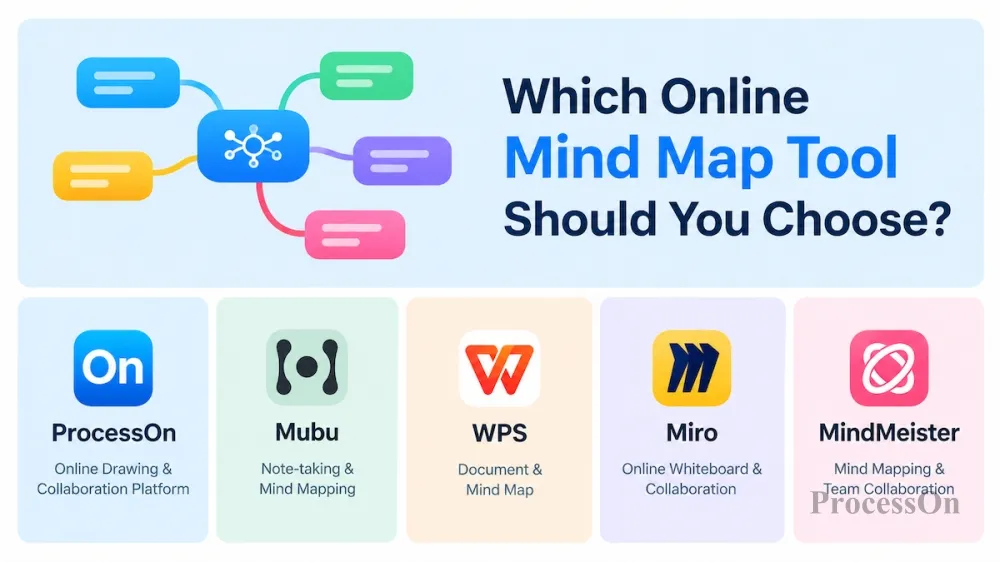
Online mind map tool is a tool for creating, editing, sharing and managing mind maps directly in the browser. It does not require client installation, files are saved in the cloud and can be accessed across devices. It usually also supports sharing links, multi-person collaboration, template reuse and file export.
Mind map itself is a visual method that organizes information with central themes, branches and hierarchical structures. It is often used to sort out knowledge points, break down tasks and analyze problems. Online tools complement this with collaboration and distribution capabilities.
Compared to local mapping software, online mind map tools are better suited for cross-device access, link sharing, and team collaboration. But this does not mean that online tools are necessarily better: if the work environment is often offline, or there are hard requirements for local file management, local software is still more reliable.
1. Students and Individual Learners
Used to organize class notes, review knowledge points, make reading notes and build a personal knowledge system. When selecting, focus on whether the operation is smooth, whether the template is practical, and whether it is easy to review and print after exporting.
2. Workers and Project Managers
Used to sort out work plans, analyze business problems, formulate project plans and prepare reporting materials. In addition to the mind map itself, attention should also be paid to file export, structure adjustment and chart sharing capabilities.
3. Team and Enterprise Users
Collaboration is key when multiple people need to discuss, modify, and maintain the same diagram. In addition to real-time editing, consider access rights, version management, and team file management.
4. Product, Design and Technical Personnel
The needs of such users often go beyond mind maps, and may also involve flow charts, organizational charts, UML, ER diagrams and system architecture diagrams. The workflow will be more coherent if multiple diagrams can be completed in the same tool.
Therefore, before choosing an online mind map tool, it is recommended to first clarify what you mainly use it for, and then decide which functions you really need.
When faced with the function introduction of different products, the most common problem is to only compare the number of functions, but ignore whether the functions can solve their actual problems. It is recommended to judge from the following five dimensions:
For individual users, sharing links may be enough; for project teams, being able to edit together, manage permissions, and track changes is more important. When choosing, focus on checking four questions:
It should be noted that supporting sharing does not mean supporting real-time collaboration. Some tools can send files to others for viewing, but they may not support multiple people modifying them at the same time.
If you often organize brainstorming, sort out product requirements or develop project plans, it is recommended to actually invite a member to do an editing test to observe whether the synchronization speed and permission settings meet the needs of the team.
Mind maps are usually not the final product of the work. After the drawing is completed, you may have to put it into reporting materials, send it to clients, print it for filing, or hand it over to other tools for further editing.
Therefore, export capabilities should not only depend on how many formats are supported, but whether the format matches your usage scenario.
| Usage requirements | Suggested formats or capabilities to focus on |
| Share with colleagues to view | PNG, JPG, PDF, etc. |
| Print or formally file | PDF, clarity and watermark |
| Place documents or presentation materials | Images, PDF and other compatible formats |
| Continue editing or migrating files | Native formats and editable interchange formats |
| Continue using it in other drawing tools | Import and export compatibility and structure retention |
Also pay attention to a few details: whether the exported image is clear, whether the node layout is complete, whether long images are easy to read, and whether certain formats are restricted by paid packages.
If you often need to deliver formal diagrams, it is recommended to use a mind map containing multi-level branches to test the export effect before selection.
Templates can help users quickly build structures and reduce repetitive work. However, the value of templates does not entirely depend on quantity. It is worth paying attention to three aspects:
Scenario coverage: Whether there are common templates such as study notes, reading notes, project plans, product analysis, meeting management, etc.
Content quality: Whether the template has a reasonable hierarchical structure and can it be directly used in actual work.
Reuse efficiency: Whether search, preview, copy and secondary editing are supported.
For example, when creating a project plan, if you already have a template that contains goals, tasks, timelines, and risk analysis, you can adjust the content based on this without having to redesign the entire structure.
Templates only provide a starting point and are not a substitute for actual analysis. When choosing, you should pay attention to whether the template is easy to modify and whether it is suitable for your tasks, rather than simply pursuing quantity.
The way different tools operate varies greatly. For novices, whether it is intuitive to create nodes, adjust branches, and modify styles will directly affect usage efficiency.
If the work involves more complex content, you also need to pay attention to:
For example, the product manager may first use a mind map to sort out the requirements, and then use a flow chart to express the user operation path; the technical staff may first organize the system modules, and then draw an architecture diagram or sequence diagram. If these tasks are all accomplished, the comprehensive drawing capabilities are more valuable than the mind map function alone.
Whether the free version is sufficient depends on your actual needs. It is recommended to check the following:
For individual users, the most important thing is to confirm whether the free plan can cover daily tasks; for team and enterprise users, they also need to pay attention to team management, permission control, and data security and compliance requirements.
The product positioning of different tools is not the same. The following comparison is based on the main uses to help you establish a preliminary judgment.
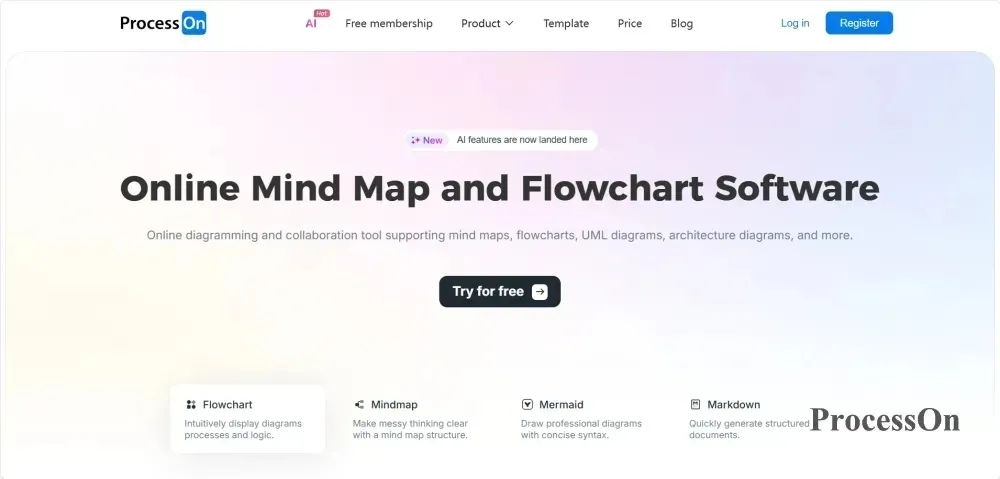
ProcessOn It is an online collaborative drawing tool. In addition to mind maps, it also supports flow charts, swimlane diagrams, UML, ER diagrams, network topology diagrams, architecture diagrams, organization charts, timelines, fishbone diagrams and many other types of graphics. It is one of the most popular online drawing platforms among users.
For users who only need to record ideas, the mind map function can already meet the basic needs; for users who often need to make different types of charts in their work, comprehensive drawing capabilities are a more worthy feature. Main areas of concern:
Multiple graphic types: In addition to mind maps, you can also draw professional graphics such as flow charts, architecture diagrams, UML, ER diagrams as needed.
Online collaboration: Supports joint editing by sharing links or inviting collaborators, and can set viewing or editing permissions; after turning on public sharing, the other party can view it without logging in.
Template resources: Provide templates for mind maps and other graphics, which can be applied first and then adjusted to the nodes and structure.
File compatibility: Supports importing Visio, Xmind, Markdown, Mermaid, Excel and other files; the mind map can be exported as PNG, PDF, Word, Excel, Xmind and other formats.
Version management: Supports viewing and restoring historical versions of files.
Benefits of the free version: Can create 9 files, with no limit on the number of nodes, supports simultaneous editing by 3 collaborators, exports standard-definition images and basic online collaboration; high-definition export, unlimited number of files, and more collaborators are paid benefits.
These features are suitable for users who want to combine information organization, business process expression and professional graphics production.
For example, in a product requirements analysis, you can first use a mind map to sort out the requirements, and then use a flow chart to express the business process; when the work further involves system design, you can also draw a UML or architecture diagram on the same platform. For this type of user, what deserves attention when selecting is not only "whether it can draw online mind maps", but also "whether it can continue to complete subsequent chart work".
An important feature of Mubu is the combination of outline notes and mind map. For users who are accustomed to recording their thoughts in words first and then gradually organizing the structure, this method is worth considering.
For example, when reading, you can record key points by chapter, organize the content through a hierarchical structure, and switch to the mind map view to observe the overall relationship. Main areas of concern:
Mubu outline notes support Word, PDF, Markdown, images, HTML, OPML and other export formats; the mind map mode supports PDF, images and FreeMind formats. Format support on mobile terminals is different.
If your job is mainly to organize text, make outlines, record knowledge and form mind maps, you can give priority to examining this working method of Mubu.

Image source: mubu.com
WPS mind map is suitable for users who frequently use WPS office software. For people who need to make work plans, organize reporting ideas, and output office documents, file compatibility and usage habits are important factors. Main areas of concern:
WPS mind map export formats include JPG, PNG, DOC, PDF and POS, and import formats include XMind and POS. Before formal selection, it is recommended to test the export, import and collaboration capabilities according to your own equipment.
If your work mainly revolves around office documents, you can prioritize its connection with existing workflows; if you need a wider range of professional graphics types, graphics coverage should be used as an additional comparison dimension.
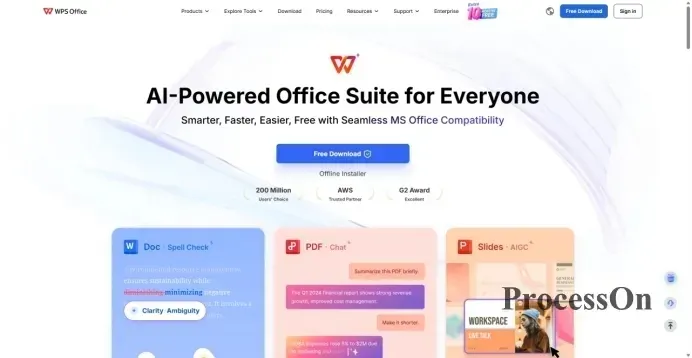
Image source: wps.com
Miro focuses more on online visual collaboration. In addition to mind maps, other visual content such as sticky notes, documents, graphics, and more can be organized in the same canvas for brainstorming, team discussions, and project planning. Main areas of concern:
If a team needs to talk around a topic and organize multiple visual materials in the same workspace, the Miro is worth including in the comparison. However, if the main task is just to organize personal knowledge, or if you need to frequently draw standardized professional graphics, you should further evaluate whether it is suitable for the actual workflow, and do not have to choose it by default because of its rich functions.
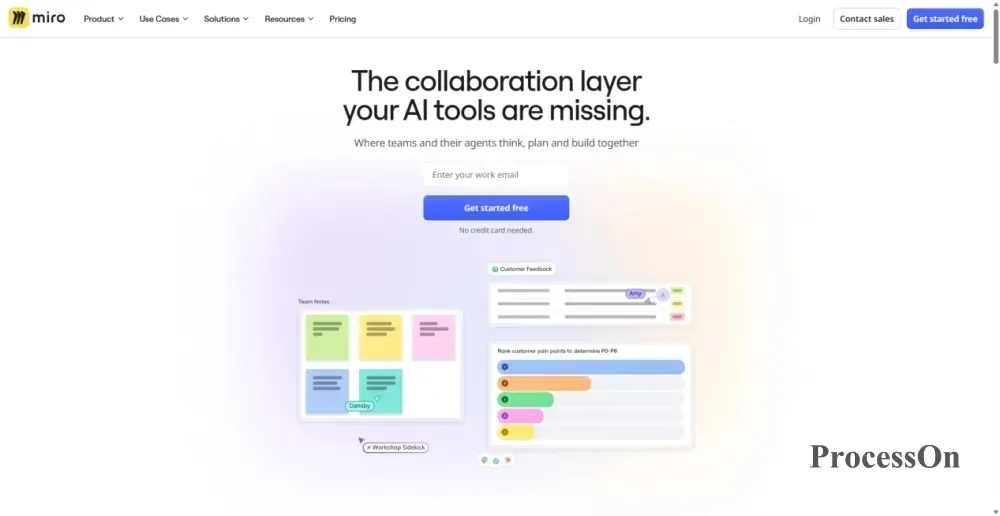
Image source: miro.com
MindMeister is a tool with online mind map as its core, suitable for users who want to create, share and jointly edit mind maps on the web. Main areas of concern:
It is important to note that the free plan of MindMeister has obvious file quantity and export restrictions: free accounts can usually only retain 3 mind maps, and the export function requires a paid package that meets the conditions.
If you only need to organize a small number of ideas online, you can judge whether it is sufficient according to the restrictions of the free plan; if you often need to export PDF, images or other files, you should check the corresponding package in advance.
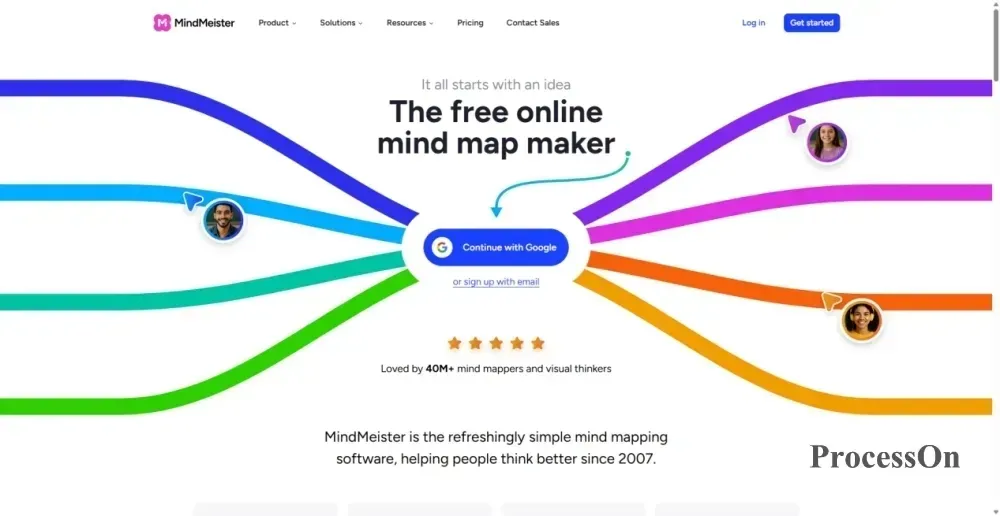
Image source: mindmeister.com
| Contrast Dimensions | ProcessOn | Mubu | WPS mind map | Miro | MindMeister |
| Main positioning | Comprehensive Online Drawing Tools | Outline Notes + mind map | Office scene mind map | Online visual collaboration whiteboard | Focus on online mind map |
| Collaboration focus | Sharing links and collaborator permissions | Note sharing and collaboration | Sharing links and collaborator permissions | Team canvas multi-person collaboration | Online map co-editing |
| Export key points | PNG, PDF, Word, Excel, etc. | Outline and map formats are different | Image and document formats | Image, PDF (subject to package restrictions) | Export paid packages |
| Graphic range | Mind map/Flow chart/UML/Architecture diagram, etc. | Mind map based | Mind map based | Whiteboard with various visual elements | Mind map based |
| Key points of the free version | Can create 9 files, unlimited number of nodes, supports 3 collaborators to edit at the same time | According to the current official instructions: the maximum number of document topics is 200 | According to the current official description: 150 nodes, limited export format | According to the official current description: 3 editable whiteboards | 3 mind maps can be retained, exporting is limited |
| Who is more suitable for | Users who require multiple graphics and collaboration | Users who start with text organization | Suitable for users with WPS office usage habits | Team visual collaboration scene | Pure online map collaboration scenario |
This table is suitable for preliminary screening, but should not replace actual functional testing. In particular, collaboration capabilities, export formats, template usage rights and free version restrictions are best verified one by one according to unified standards.
After understanding the tool positioning, you can further narrow the scope based on your work tasks.
If it is mainly used for class notes, reading notes, exam review and knowledge organization, give priority to outline structure, templates, editing efficiency and file export.
Mubu is suitable for inclusion in workflow comparisons that start with text outlines; tools such as ProcessOn can also be evaluated based on templates, editing experience, and file management capabilities. It is recommended to test it with a real course note or reading note first to see which method best suits your organization habits.
If multiple people are required to jointly sort out the plan, focus should be placed on verifying real-time editing, sharing permissions, comments, and version management.
Don't just look at whether the product has the "Collaboration" tag, but actually invite colleagues to edit it together to confirm whether the modifications are synchronized and whether access rights can be managed according to the team's requirements.
The Miro can be a candidate for visual collaboration in teams, and the ProcessOn is also worthy of inclusion in testing scenarios that require a combination of drawing and collaboration.
If you need to produce project plans, business analysis and reporting materials, it is recommended to give priority to templates, export formats and subsequent editing capabilities.
If the work also involves diagrams such as business processes, organizational structures, or system architectures, you must consider whether the tool can cover these additional requirements, not just whether it can draw mind maps.
If you frequently use mind maps for documents, courseware, or teaching materials, you should focus on testing the export format, page layout, clarity, and file compatibility.
WPS mind maps can be used as candidates for office workflow direction. Whether it is appropriate or not should be judged based on the actual version, equipment and file requirements.
For users who need to maintain knowledge structures for a long time, manage team files, and create multiple types of charts, in addition to basic editing functions, permission management, version records, template reuse, and data management should also be considered.
If your work often extends from mind maps to professional graphics such as flow charts, UML, ER diagrams, you can prioritize the coverage of comprehensive drawing platforms.
If your needs go beyond organizing your ideas to include team collaboration, business process grooming, and professional diagramming, it’s worth taking a closer look at what the ProcessOn is actually capable of.
Mind map is suitable for divergent thinking, organizing information and organizing structure, but not all tasks are suitable for expression.
ProcessOn puts the above graphic types in the same online platform. mind maps, flow charts, swimlane diagrams, BPMN, UML, ER diagrams, network topology diagrams, timelines, fishbone diagrams, etc. can be created directly.
For product managers, they can first use mind map to organize requirements in ProcessOn, and then draw user flow charts; for project teams, they can first sort out the task structure, and then convert key processes into charts. This continuous workflow from idea organization to graphic expression is the core value of the comprehensive drawing platform.
A mind map often needs constant revision: tasks will change after project discussions, and adjustments will be made after product plan reviews. If files are downloaded, modified, and sent repeatedly, teams can easily encounter version confusion.
ProcessOn supports online drawing and collaboration. You can invite collaborators through sharing links and set viewing or editing permissions. After public sharing is turned on, the other party can view it without logging in. mind map files also support viewing and restoring historical versions.
When using it officially, it is recommended to confirm whether the sharing scope, editing permissions and version management capabilities of the corresponding files meet the team's requirements. For project plans, requirements analysis and business process diagrams that need to be continuously updated, this type of online working method is worth trying.
When faced with a blank canvas, many users don’t have no ideas, but are unsure of how to organize content. Templates provide an initial structure, allowing users to first apply the framework and then gradually adjust nodes, levels, and styles.
ProcessOn provides template resources for mind maps and other graphics, allowing you to find a suitable starting point according to your study, work and project needs. For example, when making a project plan, first select the corresponding template, and then modify the content according to project goals, task division, time schedule and risk analysis; when you need to draw other graphics, you can also find templates according to chart types. It should be noted that templates are just tools to improve efficiency, and the final content still needs to be adjusted based on actual tasks.
After completing a image, you may need to send it to colleagues, put it into a report, print it for archiving, or move it to other tools to continue editing.
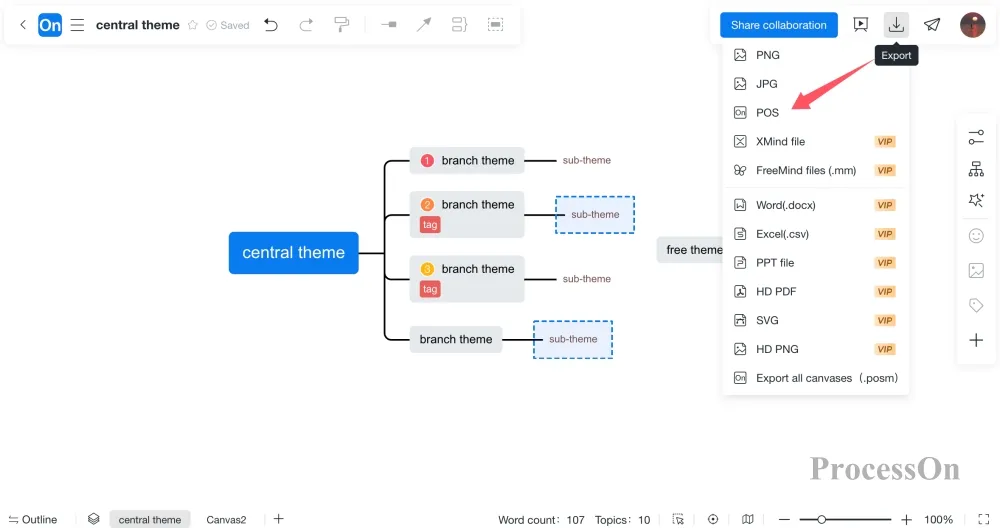
ProcessOn mind map supports exporting PNG, PDF, Word, Excel, Xmind and other formats, and flow chart supports PNG, PDF, VISIO and other formats; it also supports importing POS, Excel, Xmind, VISIO and other documents.
For users who need to deliver files, it is recommended to select the format according to the needs of the recipient: for viewing and sharing, optional images or PDF; if further editing is required, the corresponding editable format and structure retention should be verified.
If you are using it for the first time, you can follow the following four steps to complete a deliverable online mind map:
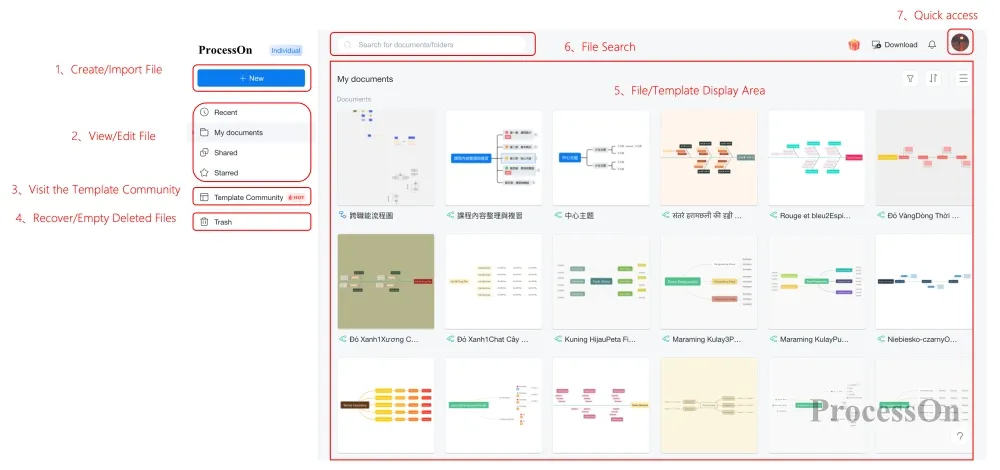
Create a new file: Login ProcessOn After that, click New on the "My Documents" page and select "mind map". You can also directly import Xmind, Markdown or Excel files to generate a first draft.
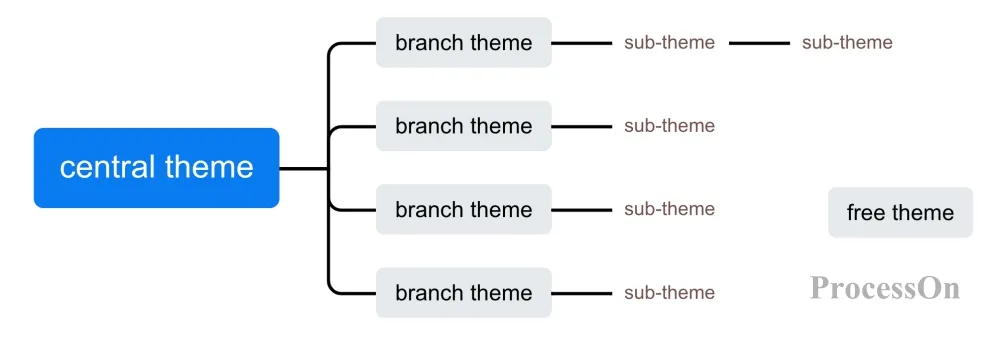
Build the structure: First determine the central theme, and then add first-level branches and second-level nodes step by step. When you need to get started quickly, you can choose study notes, project plans, product analysis and other templates from the template center.
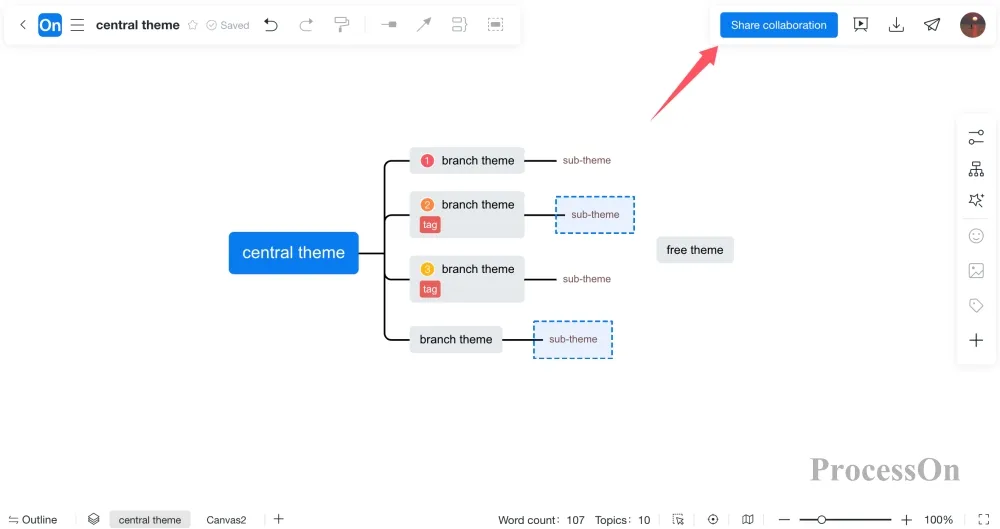
Initiate collaboration: Click "Share" in the upper right corner, enter the collaborator's account to invite co-editing, or enable public sharing and copy the link. Before sharing, confirm whether the other party has viewing or editing permissions.
Export delivery: Click download on the file details page and select the format according to the purpose - PDF or Word for reporting, PNG for inserting documents, and Xmind for migrating to other tools. Before exporting, it is recommended to preview the overall layout and confirm that the nodes are not truncated.
You can put ProcessOn on your shortlist if you fit one or more of the following conditions:
You can first visit the ProcessOn online mind map, select a template that is close to the actual task, complete the creation, editing, sharing and exporting, and then judge whether it meets your own usage habits.
After reading the feature introduction and comparison table, the surest thing to do is still to test it yourself. You don't need to test all advanced features, just choose a real task and you will find many key differences. Here we take the "new product launch plan" as an example.
Create six first-level branches under the central theme: product goals, user needs, research and development tasks, marketing, launch time, risks and responses. Add two or three more secondary nodes to each branch. Testing different tools with the same content can avoid comparing results affected by differences in chart complexity.
Try creating from a blank canvas and from a template respectively, and observe whether it is easy to find a suitable structure, and whether it is convenient to modify nodes and adjust the layout. Focus on recording the actual problems encountered when completing the task, rather than just looking at whether the interface is beautiful.
Invite another tester to view and modify the file and confirm: whether the other party can be invited successfully; whether appropriate access permissions can be set; whether modifications are synchronized in a timely manner; and whether historical versions can be viewed or restored. If a capability is not supported or is limited by the package, this should also be clearly documented.
Export the same chart to the required format, checking layout, clarity, page integrity and whether the editable structure is retained. Also record whether the template is easy to find, copy and modify, and whether there are any restrictions on its use.
It is recommended to use a record sheet to organize the test results:
| test items | Key observations |
| Create an experience | Operation steps and difficulty of getting started |
| template | Scene matching and modification efficiency |
| cooperation | Invitation method, editing synchronization, permissions |
| Export | Format, Clarity, Layout, Limitations |
| job adaptation | Whether the actual required graphics and processes are covered |
| cost | Does the free version meet your needs? |
If it is mainly used for personal study, creation and organization efficiency are more important; if it is used for team projects, collaboration and permissions are more important; if formal diagrams are often required to be delivered, export quality and compatibility deserve priority.
Don’t make a judgment based solely on the number of features. An online mind map tool that is truly suitable for you should be able to complete practical tasks at a reasonable cost.
Which Online Mind Map Tool is the Best?
It depends on your primary use. If you only want to organize personal notes, Mubu's outline-to-mind map function and MindMeister's pure mind map experience are both worth trying; if you need a team collaboration board, Miro is more suitable; if in addition to mind maps you also need to draw flow charts, UML, ER diagrams and architecture diagrams, comprehensive online drawing platforms such as ProcessOn are more convenient. It is recommended to do a comparison test with the same real content before making a decision.
Are There Any Free Online Mind Maps?
Yes. Most online mind map tools offer free plans, but free versions usually have limitations on the number of files, export formats, number of collaborators, and template permissions. For example, the ProcessOn free version can create 9 files, has an unlimited number of nodes, and supports simultaneous editing by 3 collaborators; the MindMeister free version can usually only retain 3 mind maps and does not support exporting. It is recommended to clarify your frequency of use and required functions first, and then check the current package description.
Can Multiple People Edit Online Mind Maps at the Same Time?
This depends on the specific product and version. Some tools support real-time co-editing, while others only offer sharing or file delivery. The three capabilities of co-editing, sharing permissions, and modification synchronization should be tested separately before selection.
How to Export PDF, Images or Word from Online Mind Maps?
Different tools support different formats, and some formats are restricted by versions or packages. The general process is: open the file details page → click Download/Export → select the target format. Taking ProcessOn as an example, the mind map can be exported to PNG, PDF, Word, Excel, Xmind and other formats. It is recommended to test the required format with actual files and check clarity, page layout and subsequent editing capabilities.
What is the Difference Between Mubu, WPS Mind Map and ProcessOn?
You can start by comparing the main uses of the products. Mubu focuses on combining outline notes with mind maps, which is suitable for text organization as a starting point; WPS mind maps are suitable for WPS office workflow and have good file compatibility; ProcessOn is a comprehensive online drawing platform. In addition to mind maps, it also supports flow charts, UML, ER diagrams, architecture diagrams and other professional graphics. The final selection is still subject to actual functional testing.
In Addition to Mind Maps, you also Need to Draw Flow Charts and Architecture Diagrams. How Should you Choose?
It is recommended to consider graphics coverage as an important selection indicator. First list the types of graphics you need for your work, and then confirm whether the tool supports the corresponding graphics, templates, export formats and collaboration processes. If multiple tasks can be completed on the same platform, it will be more conducive to unifying working methods and file management.
Are Online Mind Map Tools Safe?
You should focus on verifying file storage location, sharing permissions, data deletion, backup mechanism and terms of service. Business users should also confirm the safety and compliance information of the products according to their own requirements. For sensitive information, it is not recommended to upload it directly without confirming the data management requirements.
How Can a Novice Organize Notes Using Online Mind Map?
You can follow four steps: first write down the central theme (such as the chapter name); then use the first-level heading as a first-level branch; then add keywords in your own words to avoid copying the entire paragraph; finally, use colors or icons to mark key points and questions. After finishing, export PDF or images, and look back when entering review.