Process Type
Graphical expression
Mind Type
Structured expression
Note Type
Efficient expression
Treemap
Bracket Diagram

Default Mode





In the world of software development and technical documentation, flowcharts are an indispensable tool. However, traditional flowchart software is either paid or cumbersome to use—dragging, aligning, connecting lines, and adjusting a single node can take a long time. Is there a way to quickly generate flowcharts by writing code?
The answer is: Mermaid.
Mermaid is a text-based diagramming tool that uses a Markdown-like syntax to generate various diagrams such as flowcharts, sequence diagrams, and class diagrams with simple code. You don't need to install any software; all you need is a browser to use it for free.
Today, we'll take you 5 minutes to learn how to use Mermaid flowcharts from scratch.
Mermaid is an open-source JavaScript library that allows you to create charts using simple text descriptions. With just a few lines of code, Mermaid can automatically render them into visual charts.
Plain text: Charts exist in code form, facilitating version control (Git-friendly).
Free and open source: No payment required, usable on any platform.
The grammar is simple: the learning curve is extremely low, and you can get started in just a few minutes.
Extensive integration: Mermaid is natively supported by tools such as GitHub, Notion, Obsidian, and Typora.
A wide variety of chart types are available: flowcharts, sequence diagrams, class diagrams, Gantt charts, state diagrams, pie charts, etc.
For programmers, technical authors, and product managers, Mermaid is an invaluable tool for writing technical documentation. When you need to describe a process, you no longer need to open diagramming software; simply write a few lines of code in the document, and a preview will show a diagram.
In Mermaid, flowcharts are defined using the `graph` keyword and support two layout orientations:
Graph TD: Top to Down
Graph LR: Left to Right
The basic syntax is very simple:
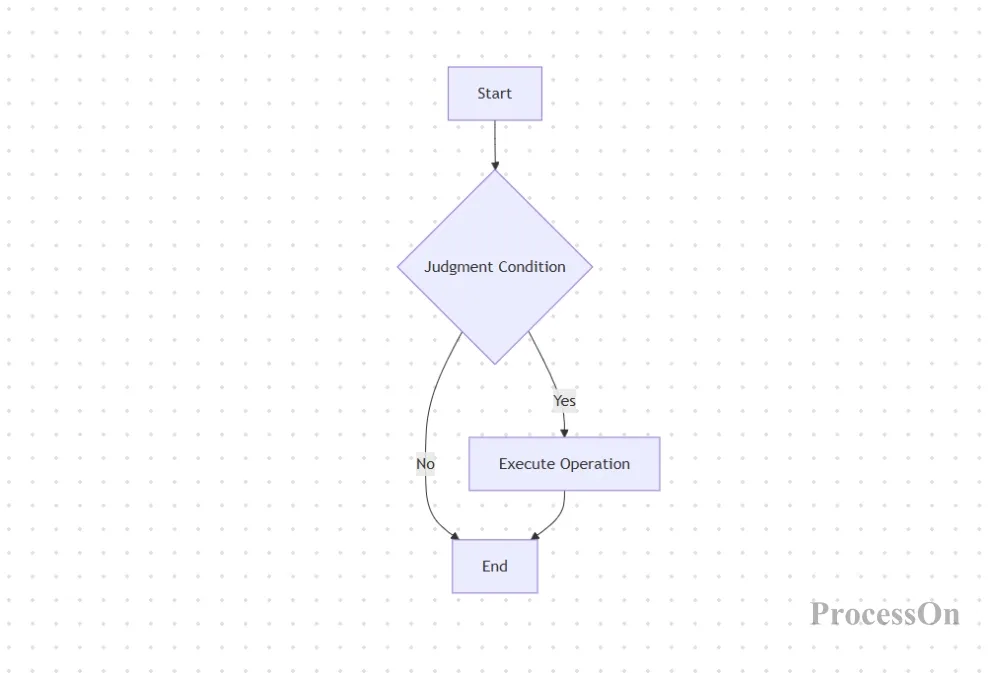
graph TD
A[Start] --> B{Condition}
B -->|Yes| C[Execute operation]
B -->|No| D [End]
C --> D
This code will generate a flowchart that includes a start, a condition, an operation, and an end. Each node can be represented by a different shape:
[Square]: Normal Steps
[Rounded Corners]: Start/End
[Rhombus]: Judgment/Decision
[Cylinder]: Database
[Circle]: Special Node
Connections between nodes are indicated by -->, and text descriptions can be added to the connection lines, such as -->"Yes"-->.
Once you master these basic syntaxes, you'll be able to draw most flowcharts.
We understand that while Mermaid syntax is simple, memorizing its various syntaxes can still be a challenge for users who don't frequently write code. Therefore, our tool offers three more convenient generation methods, allowing everyone to easily draw flowcharts.
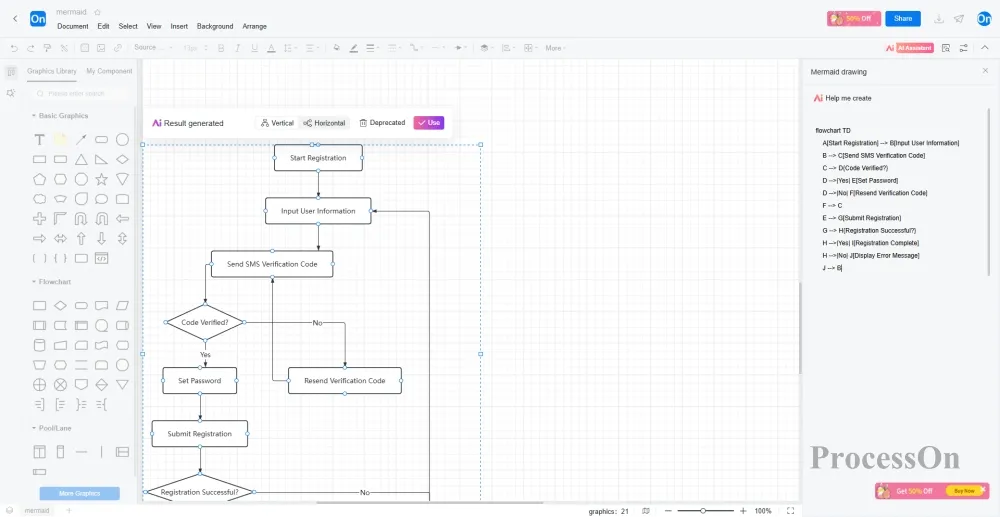
If you already know how to write Mermaid code, or have copied Mermaid code from elsewhere, simply paste it into the tool to instantly see the rendered flowchart. You can modify the code at any time, and the chart will update accordingly.
Applicable scenarios: Users who are already familiar with Mermaid syntax, or who need to modify existing code.
How to use:
Go to your ProcessOn profile page, create a flowchart, and in the flowchart editor, click Insert - Mermaid Drawing. Paste/import or directly enter the Mermaid code in the input box on the right. The flowchart will then be displayed on the canvas on the left. You can select elements and manually fine-tune the content or style.
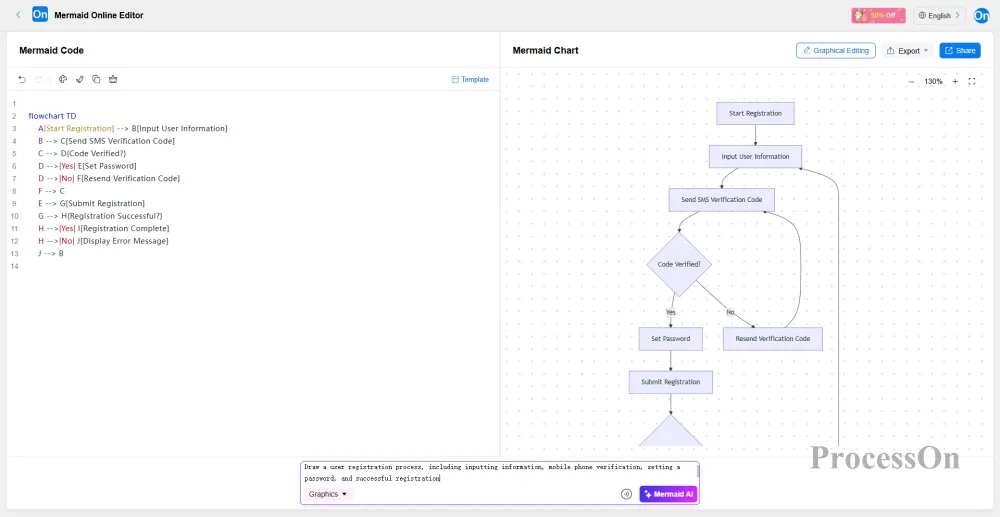
This is the most "lazy" way. You only need to enter a single requirement, just like chatting with a colleague, such as "Draw a user registration process, including inputting information, mobile phone verification, setting a password, and successful registration," and the AI will simultaneously generate Mermaid code and a visual flowchart.
Suitable for users who don't want to learn syntax and want to quickly generate graphs. After generation, you can switch to "code mode" to view the Mermaid code and learn the syntax along the way.
How to use:
In ProcessOn's Mermaid editor, click "AI Generation" at the bottom, select the "Flowchart" scenario, and simply enter your requirements in text. After the flowchart is generated, you can click "Graphical Editing" at the top to enter the flowchart editor for manual optimization.
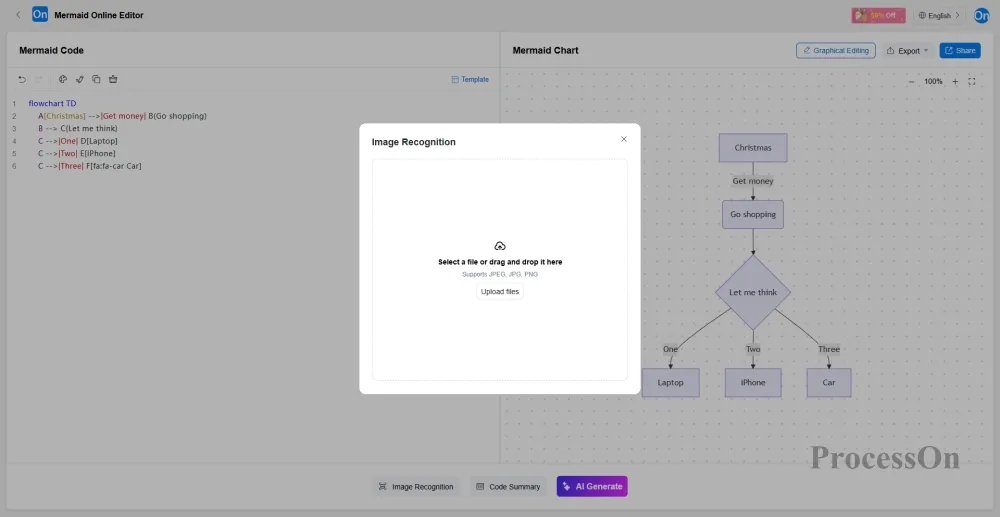
If you have a screenshot of Mermaid code (e.g., taken from elsewhere), or only have an image, don't worry. After uploading the image, AI will recognize the code text in the image and automatically reconstruct it into editable Mermaid code and flowcharts. You can then continue to modify it.
Applicable scenarios: Scenarios where only image materials are available and need to be restored to editable source files.
How to use:
Enter the Mermaid editor in ProcessOn, click on Image Recognition below, upload a JPEG, JPG, or PNG image. After successful recognition, the Mermaid code will be displayed on the left side of the editor, and a visual flowchart will be displayed on the right side. You can click on [Graphical Editing] at the top to enter the flowchart editor for manual optimization.
In technical writing and team collaboration, the maintenance cost of charts has always been a pain point. Images generated by traditional charting software require redrawing, re-exporting, and re-uploading whenever modifications are needed. Mermaid, however, defines charts with code, and modifications only require changing a few lines of text, allowing the chart to update automatically.
This is precisely the charm of Mermaid—it makes charts maintainable, version-controlled, and collaborative, just like code. ProcessOn lowers the barrier to entry for Mermaid to the bare minimum: you can generate charts using natural language, recreate them from uploaded images, and directly edit them.
Whether you're a programmer, product manager, technical writer, or student, Mermaid is worth spending 5 minutes learning. That 5-minute investment will continue to pay off in countless future documentation sessions.
Open ProcessOn now and try drawing your first flowchart with Mermaid. If you're not familiar with the syntax, just describe it in natural language, and AI will generate the code and diagrams for you.
 Following the tutorial to try
Free to use ProcessOn
Following the tutorial to try
Free to use ProcessOn