Process Type
Graphical expression
Mind Type
Structured expression
Note Type
Efficient expression
Treemap
Bracket Diagram

Default Mode





In the digital age, flowcharts have become a core tool for efficient cross-industry communication. Whether it's task breakdown in project management, logical organization in product design, or algorithm derivation in academic research, flowcharts can transform complex information into easily understandable visual structures through intuitive graphical language. However, faced with a dazzling array of flowchart tools on the market, users often find themselves in a dilemma: Does it support multi-user collaboration? Is the operation simple enough? Can it meet personalized design needs? This article will recommend a free online AI flowchart tool that combines intelligence and convenience, redefining the experience standard for flowchart creation.
Ease of use: Drag-and-drop operation, intelligent symbol library and AI-assisted functions reduce the learning cost and allow beginners to get started quickly.
Collaboration efficiency: Real-time synchronized editing, multi-role permission management, and support for seamless team collaboration.
Personalization and professionalism: A rich template library, customizable styles, and dynamic display capabilities meet diverse scenario needs.
No installation required, cloud-based creation: You don't need to download any software; simply visit the tool's official website through your browser to start creating flowcharts anytime, anywhere.
Tens of thousands of professional symbols: Built-in flowchart, BPMN (Business Process Model), UML (Unified Modeling Language), network topology diagram, architecture diagram and other professional flowchart symbols to meet the standardization needs of different industries such as finance, IT, manufacturing and education.
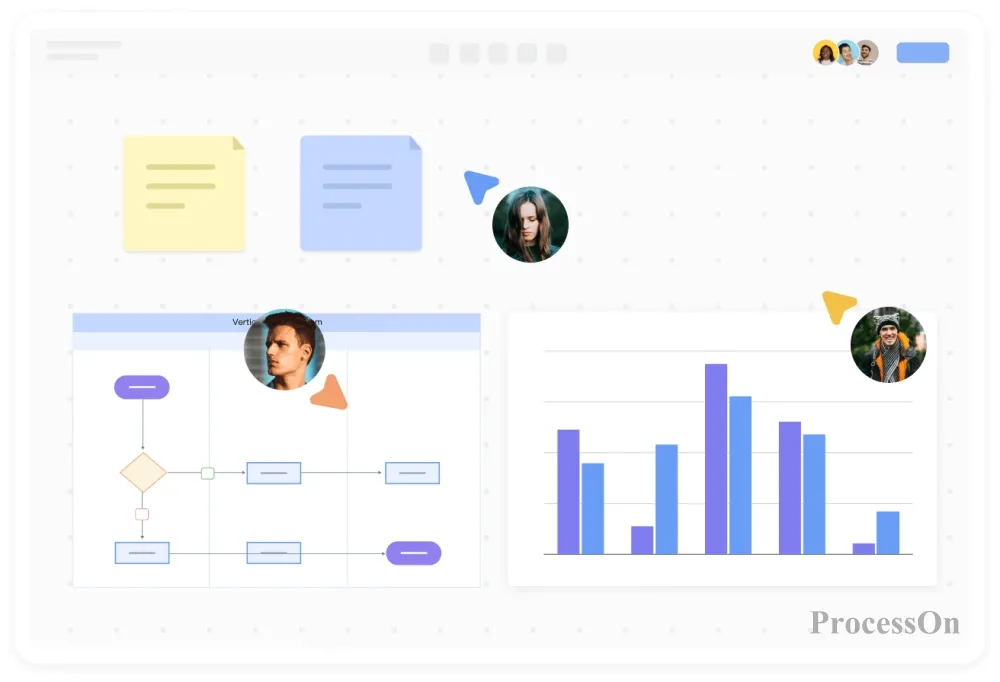
Real-time collaboration among multiple users: Supports team members editing the same flowchart simultaneously online, with all changes displayed synchronously in real time. Through the access control feature, administrators can set editing, commenting, or viewing permissions for different members.
Version history rollback: The system automatically saves every modification record, and users can roll back to any historical version at any time to avoid data loss due to accidental operation, while also facilitating comparison of process design differences at different stages.
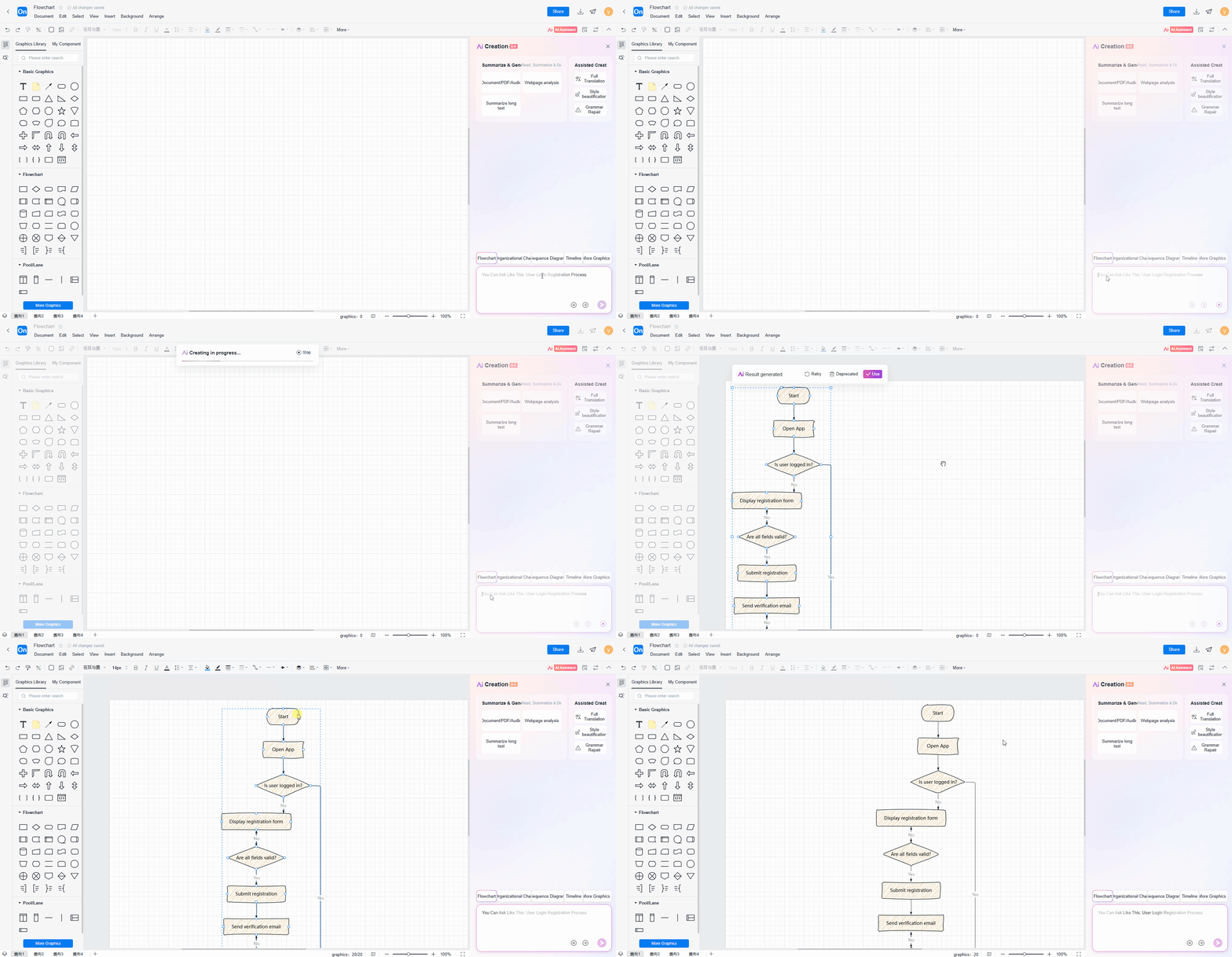
Text-based flowchart generation: Simply describe your needs (such as "user registration process"), and AI will automatically identify and supplement key steps to generate a structured flowchart. The generated results can be edited.
Style Enhancement: After the flowchart is drawn, you can enhance its style with one click, providing a variety of professional templates and color schemes;
Document Summary: Intelligent AI recognizes key processes in text content such as web pages and PDFs, generating editable flowcharts;
Multilingual Translation: Supports real-time switching of more than 20 languages, including English, Chinese, Japanese, and French, to meet the needs of cross-border team collaboration.
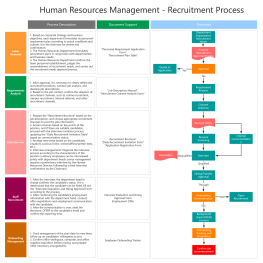
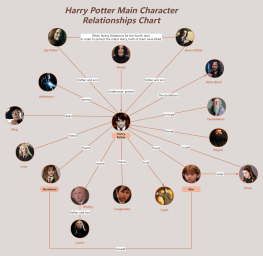
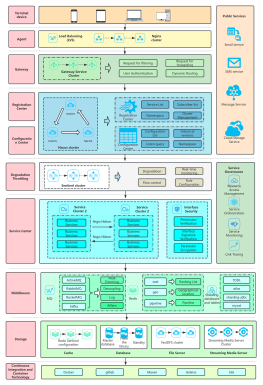
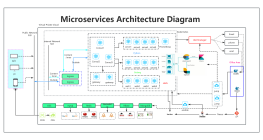
10,000+ Templates: Provides a variety of preset templates covering flowcharts, organizational charts, mind maps, swimlane diagrams, SWOT analysis, etc. Users can directly apply or modify the templates to quickly start creating content.
Custom Vector Symbol Upload: Supports uploading vector symbols in formats such as SVG and VSSX, which are permanently saved to your personal component library. It also supports keyword search by symbol name, making it easy to reuse and meet your customized design needs.
Hand-drawn style mode: Simulates the smooth texture of hand-drawing, with natural brushstroke variations, freeing flowcharts from a mechanical feel and making them more warm and personalized.
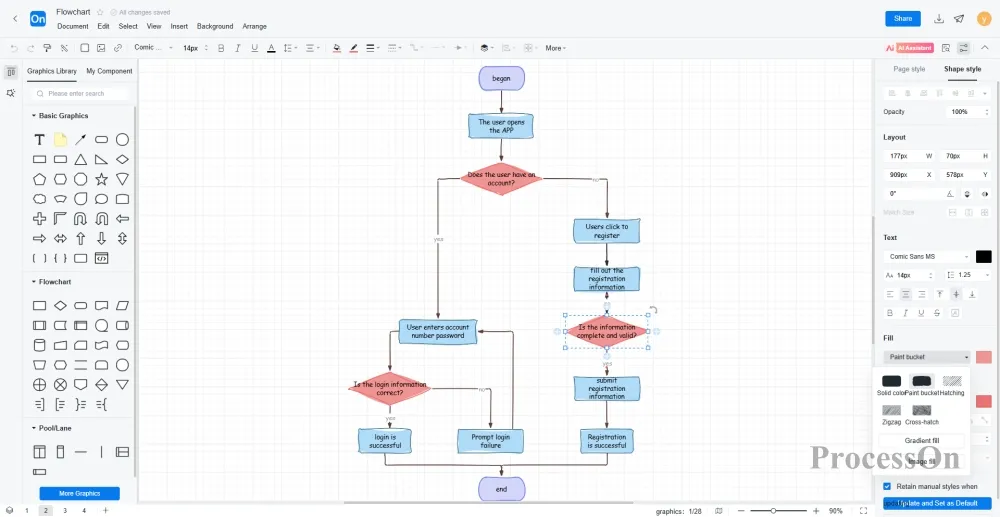
Image, icon, and link insertion: Supports uploading local images or selecting icons from the gallery to embed in flowcharts to enhance visual expression, and also supports inserting hyperlinks.
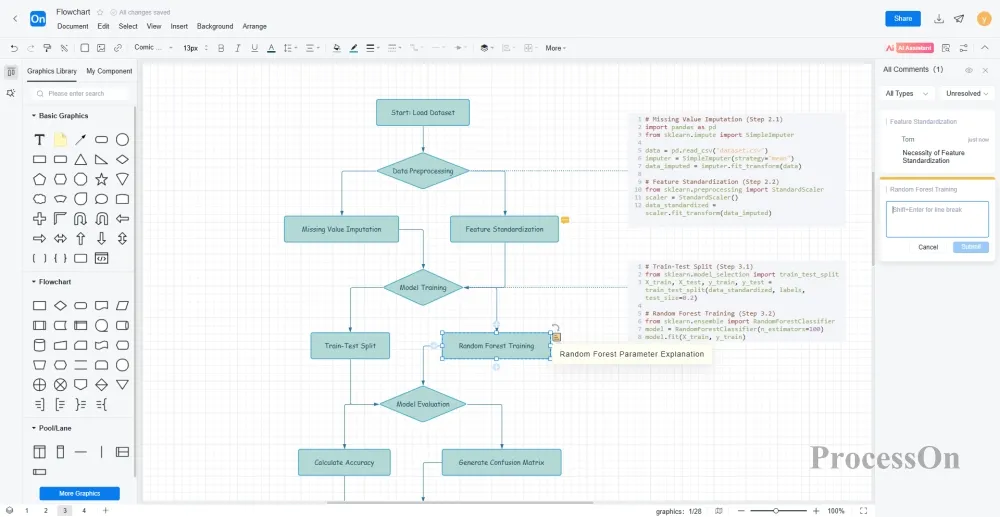
LaTeX Formulas and Code Blocks: For technical flowcharts (such as algorithm design), it supports inserting LaTeX formulas or code blocks (supporting multiple languages such as Python, Java, and SQL).
Notes or comments: Add detailed descriptions to nodes using the "Notes" feature. Notes are hidden by default and only appear when the mouse hovers over them to avoid interfering with the main workflow. Comments and annotations can be added to individual processes or the entire flowchart, indicating the process's resolution status in the comments to facilitate task flow between teams.
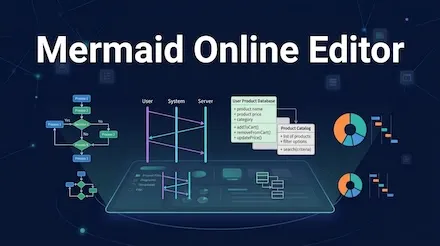
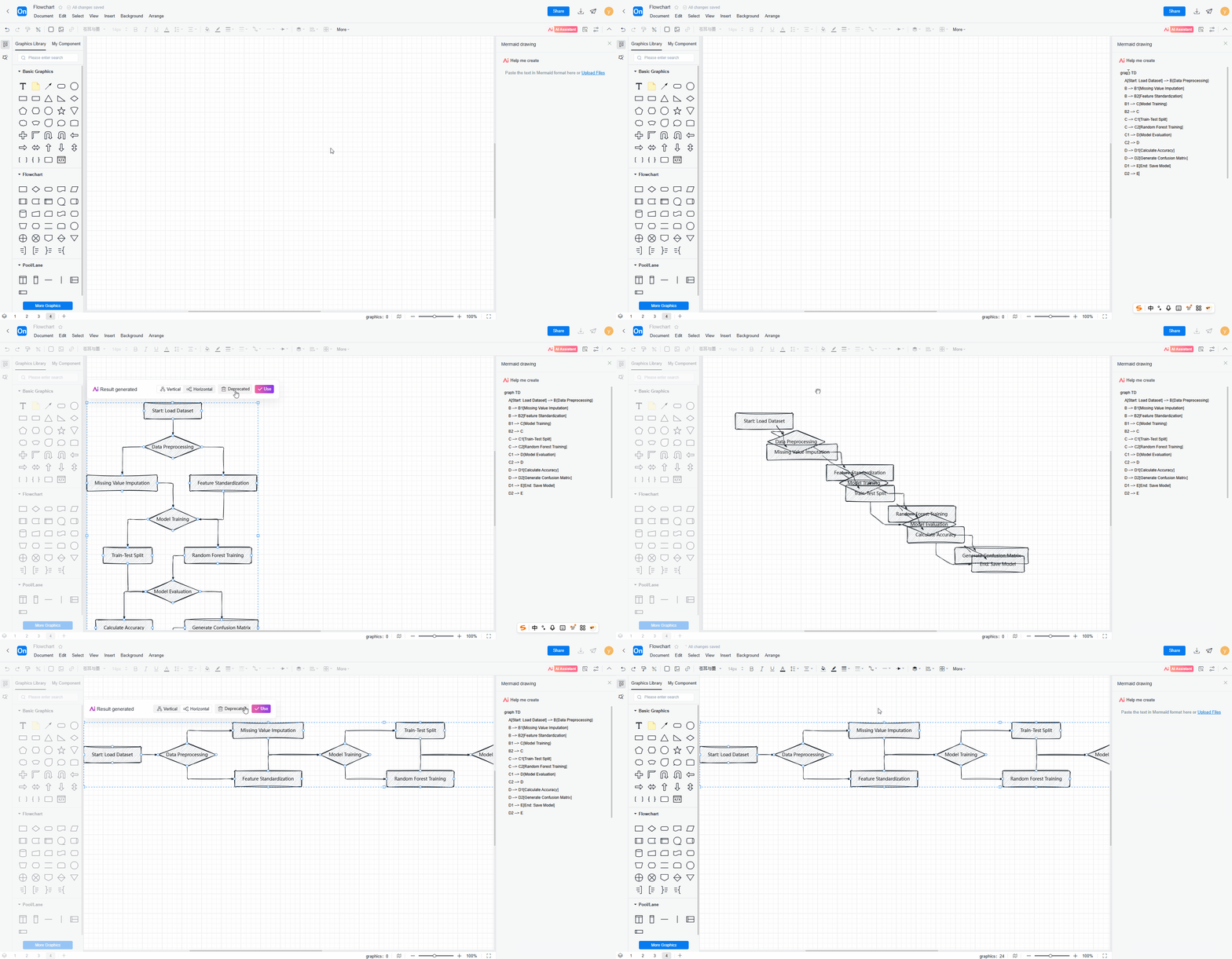
You can enter or paste Mermaid code into the flowchart editor, or upload a Mermaid file directly. The visual flowchart will be displayed directly on the canvas, and you can continue to edit the content and optimize the style.
Visit ProcessOn and begin your journey to creating intelligent flowcharts! Whether you're organizing personal plans, optimizing team processes, or showcasing professional solutions, this tool will become your indispensable digital assistant.